Enable Two-Factor Authentication (2FA)
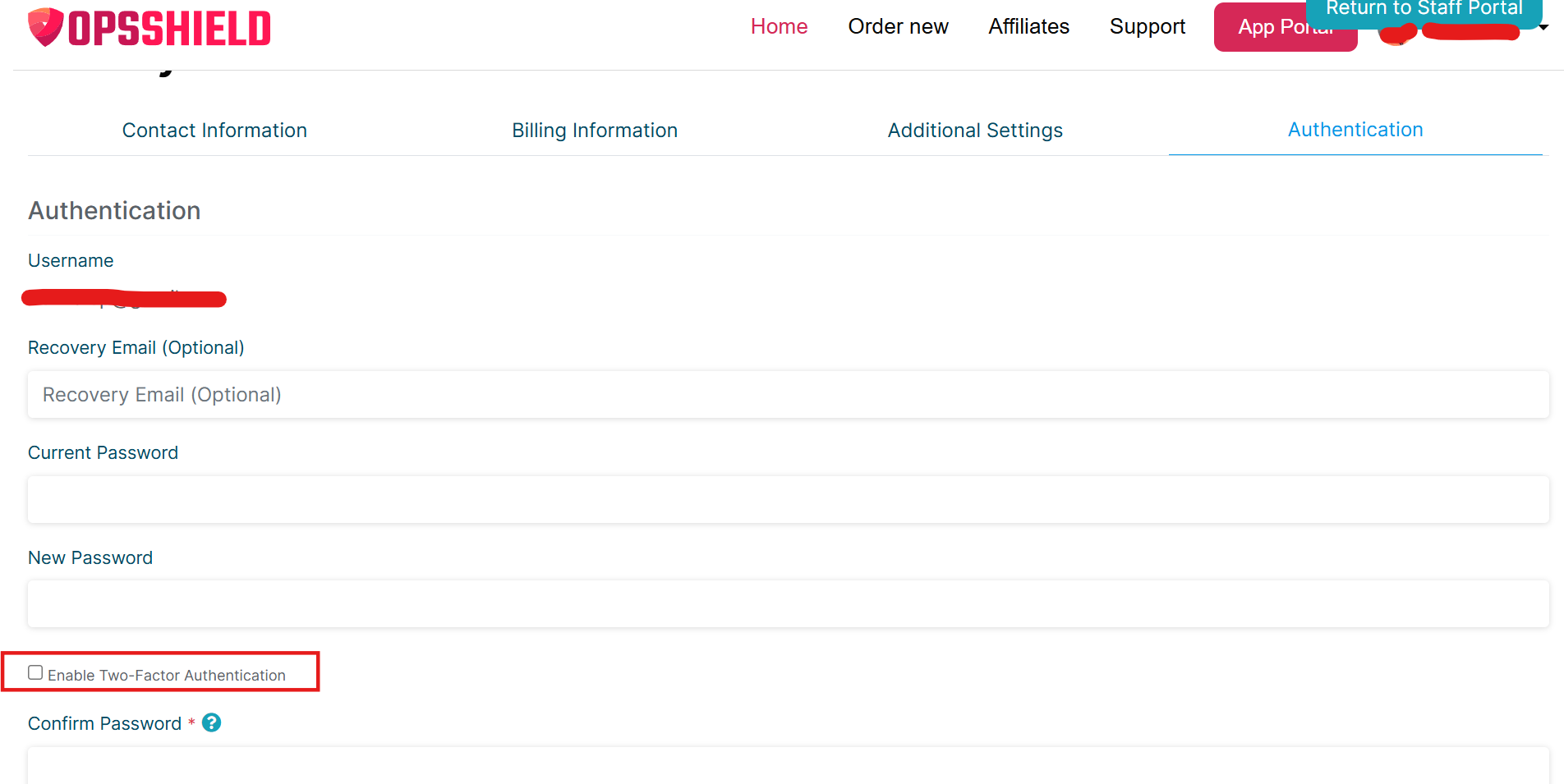
To enable 2FA on your OPSShield account:
- Go to https://manage.opsshield.com/client/main/edit/
- Select the Authentication tab
- Enable the "Enable Two-Factor Authentication" option
- Scan the QR code using an authenticator app on your mobile device
Note: When enabling 2FA, both your OTP token (from the authenticator app) and your account password are required.
You will need to enter your account password in two fields:
- Current Password
- Confirm Password
Make sure to enter the correct password in both fields along with the right OTP token from your device for 2FA to be enabled successfully.