Licenses and Plans
The OPSSHIELD Client Area allows you to manage all cPGuard and cPGuard X licenses from a single location.
This includes:
- Purchasing licenses
- Starting trials
- Upgrading plans
- Reissuing licenses
- Managing linked servers
- Cancelling services
- Reviewing renewal information
Accessing License Management
- Login to
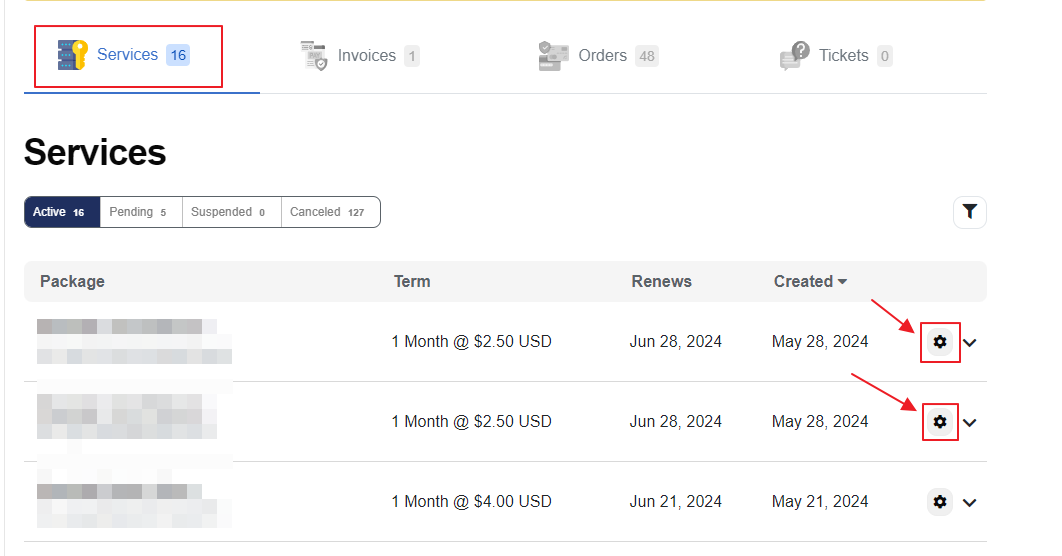
https://manage.opsshield.com - Under Services
- Select the license you wish to manage
Trial & Purchasing a License
To start a trial or purchase a new license, visit: https://manage.opsshield.com/order/main/index/cPGuard_Licenses
Trial License
- The trial license has no limitations — all features available in the paid version are included
- The trial license will expire automatically at the end of its term
- To continue using cPGuard after the trial, you will need to purchase a new license and apply it to your server
Purchase a Paid License
Once you are satisfied with the trial and ready to proceed with a paid plan, purchase a license from: https://manage.opsshield.com/order/main/index/cPGuard_Licenses
After completing the payment, you will receive a new license key. To activate it on your server, run the following command replacing LICENSE-KEY with your actual key:
cpgcli license --key LICENSE-KEY
Switch from Trial to Standard License
There is no direct option to convert a trial license to a paid license. You need to:
- Cancel the current trial license
- Purchase a new Standard license
- Apply the new license key on your server
⚠️ A canceled license cannot be restored.
Upgrade from Standard to Unlimited License
There is no direct upgrade option available. You need to:
- Purchase a new Unlimited license
- Apply the new license key on your server
- Cancel the old Standard license
⚠️ A canceled license cannot be restored.
Cancelling a License
- Log in to your account at the OPSShield Portal
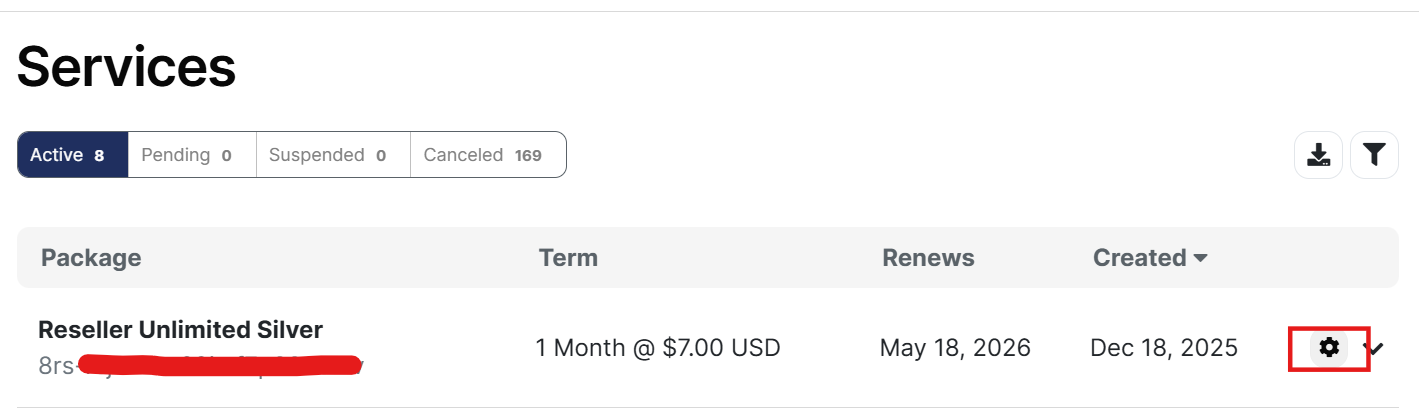
- Once logged in, find the license key you wish to cancel under the Services section
- Click on the gear icon corresponding to the license
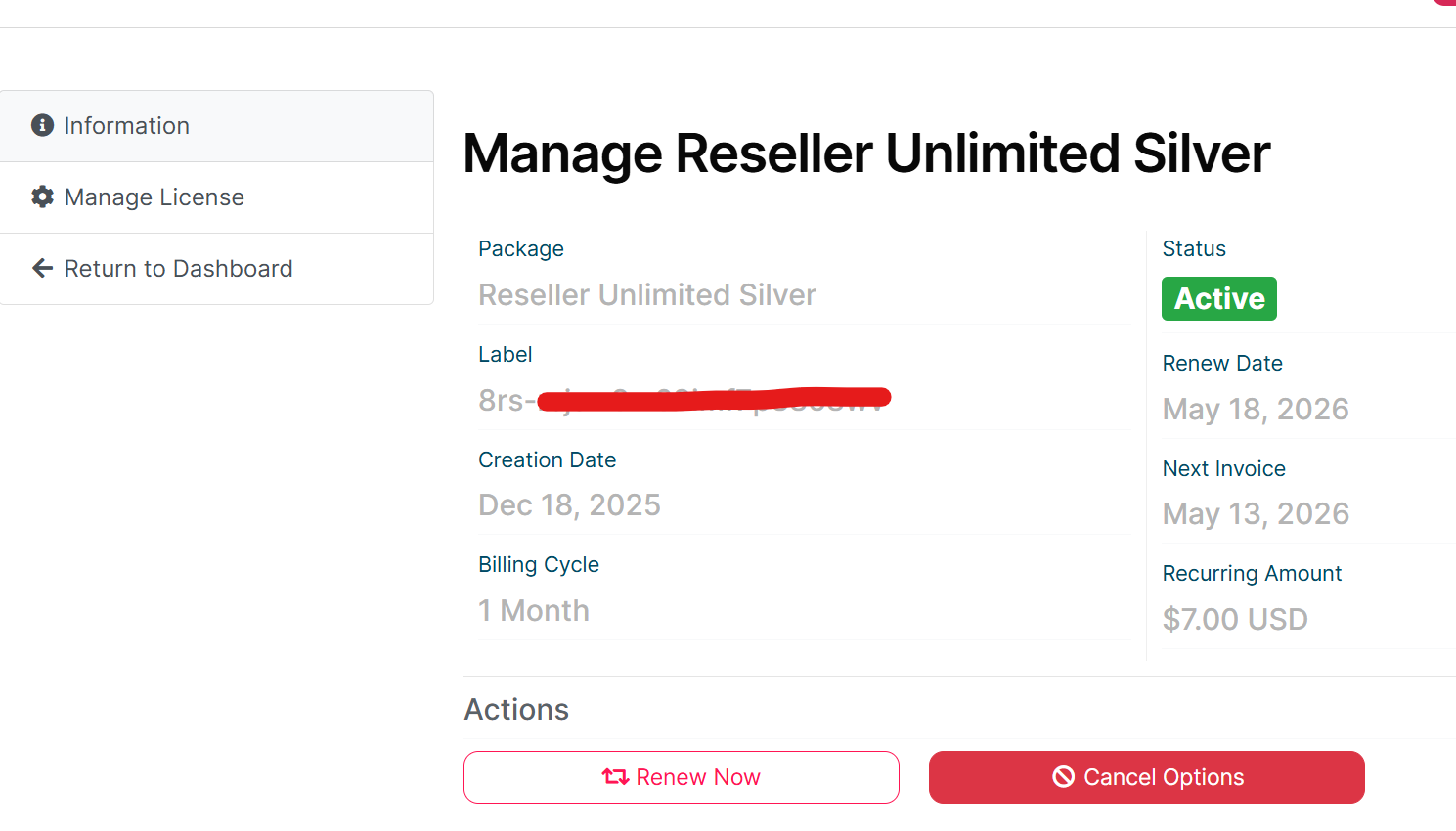
- Click on Cancel option
- A pop-up window will appear with the following options:
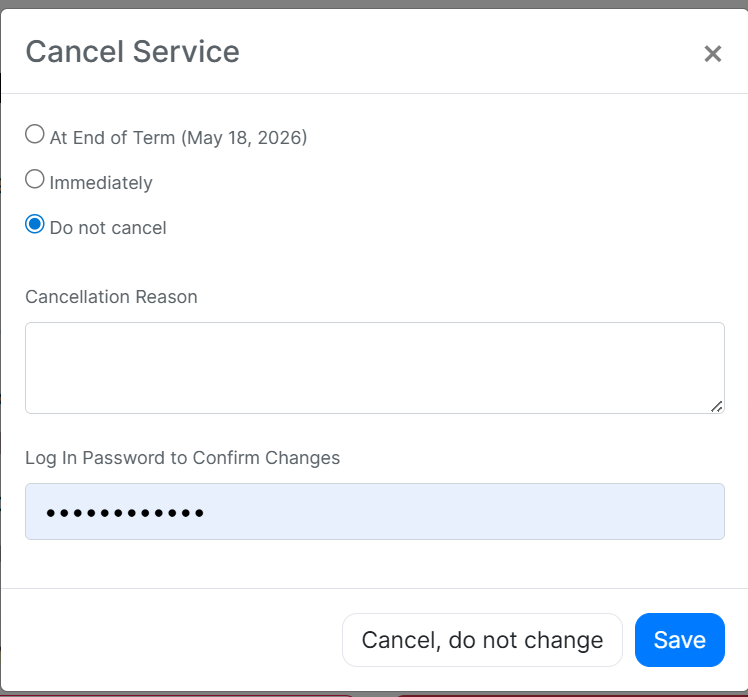
Cancel Service
| Option | Description |
|---|---|
| At End of Term | Cancels the license at the end of the current billing period |
| Immediately | Cancels the license right away |
| Do not cancel | Keeps the license active |
- Select your preferred cancellation option
- Enter a Cancellation Reason
- Enter your Log In Password to confirm the changes
- Click Cancel Service to proceed
⚠️ Select the option carefully based on your needs. This action cannot be undone once confirmed.