How to Migrate or Reissue a cPGuard License
A cPGuard license key is bound to your server's IP address at the time of activation. This means that if you move to a new server or your server's main IP address changes, you need to follow a specific migration process to transfer the license correctly. Skipping any step will result in cPGuard stopping with a license error.
This guide covers both scenarios: migrating to a completely new server, and simply changing the IP address of an existing server.
When Do You Need to Migrate or Reissue?
| Scenario | Migration Required? |
|---|---|
| Moving cPGuard to a new server | Yes, follow all 3 steps |
| Old server's main IP address has changed | Yes, follow steps 2 and 3 only |
| Old server has already been decommissioned | Yes, skip step 1, follow steps 2 and 3 |
| Adding a secondary IP (main IP unchanged) | No, migration not needed |
If you change your server's main IP address without following the migration steps below, cPGuard will stop working and display a license error. Do not skip the reissue step even if the server itself hasn't changed.
Migration Steps
Step 1 : Uninstall cPGuard from the Old Server
If you are migrating the license to a new server, uninstall cPGuard from the old server before proceeding.
You can skip this step in either of the following cases:
- The old server has already been decommissioned or is no longer accessible
- You are only changing the main IP address of the same server (not moving to a new machine)
To uninstall cPGuard from the old server, refer to the cPGuard Uninstall guide for the appropriate steps for your control panel or standalone setup.
Step 2 : Reissue the License Key
Before the license can be activated on a new server or IP address, it must be reissued from the OPSSHIELD client portal. Reissuing releases the license from its current IP binding so it can be applied to a new server or updated IP.
Follow the complete reissue process in the dedicated guide:
How to Reissue a cPGuard License
In summary, the reissue steps are:
- Log in to the OPSSHIELD Client Portal
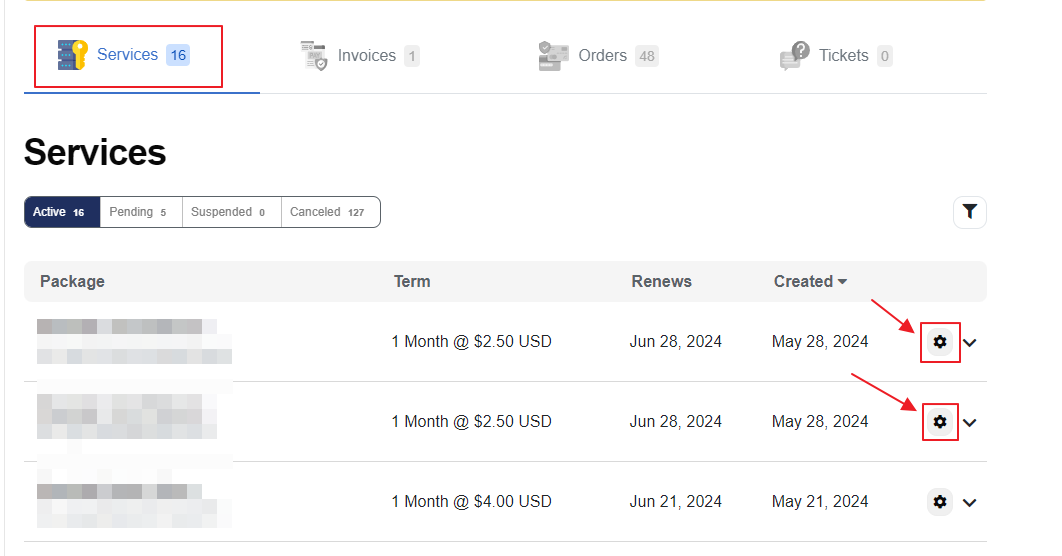
- Find your license under Services and click the gear icon
- Navigate to Manage License → check "Reissue" → Save
Step 3 : Apply the License on the New Server or IP
Once the license has been reissued, SSH into your new (or updated) server and apply the license key:
cpgcli license --key LICENSE-KEY
Replace LICENSE-KEY with your actual cPGuard license key. The key will be verified against the OPSSHIELD licensing server and bound to your new server's IP address.
If you are activating on a brand-new server, make sure cPGuard is fully installed before running this command. Refer to the Installation guide if needed.
What Happens If You Skip the Reissue Step?
If you change your server's main IP address or move to a new server without reissuing the license first, cPGuard will detect an IP mismatch between the stored license and the current server. This results in:
- cPGuard entering a license error state
- Security modules (scanner, WAF) potentially stopping
- The server appearing as unlicensed in the App Portal
The fix is always the same. Reissue the license and reapply it. There is no workaround.
How to Reissue a cPGuard License
A cPGuard license is tied to the IP address of the server it was activated on. If your server's IP address changes, or you want to move an existing license to a different server, the license must be reissued before it can be reactivated. This guide walks through exactly how to do that from the OPSSHIELD client portal.
When Do You Need to Reissue a License?
You will need to reissue your cPGuard license in any of the following situations:
- Your server's IP address has changed (e.g. after a network reconfiguration or cloud instance replacement)
- You are migrating cPGuard to a new server and want to reuse the same license key
- Your license is showing activation errors due to an IP mismatch between the key and your current server
Reissuing does not cancel or reset your subscription — it simply releases the license from its previous IP binding so it can be activated on a new or updated server.
Step-by-Step: How to Reissue a License
Step 1 : Log In to the OPSSHIELD Client Portal
Go to the OPSSHIELD client portal and log in with your account credentials:
https://manage.opsshield.com/index.php/client/login/
Step 2 : Find Your License Under Services
Once logged in, locate the license key you want to reissue under the Services section of your account dashboard.
Step 3 : Open the Service Management Page
Click the gear icon (⚙️) corresponding to the license you wish to reissue. This opens the service management page for that specific license.
Step 4 : Reissue the License
From the service management page:
- Click "Manage License" from the left-side menu.
- Check the "Reissue" checkbox.
- Click the "Save" button.
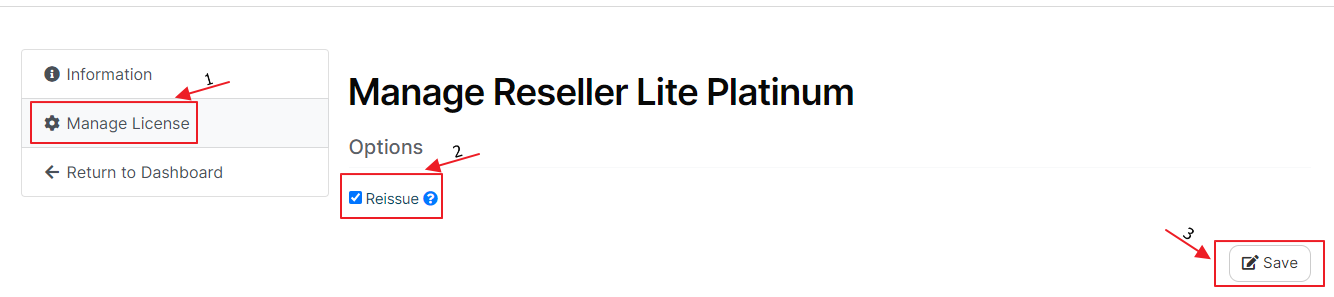
The license is now released from its previous IP binding and is ready to be applied to your new or updated server.
Step 5 : Reapply the License on Your Server
Once reissued, SSH into your server and apply the license key using the following command:
cpgcli license --key YOUR-LICENSE-KEY
Replace YOUR-LICENSE-KEY with your actual license key. The key will be verified against the licensing server and your server will be bound to the App Portal again.
If you are migrating to a completely new server, make sure cPGuard is already installed before running the license command. Refer to the Installation guide if needed.
If you face more issues to activate the license, please feel free to contact our support team. You can raise a support ticket from within the client portal.