Account Management
The OPSSHIELD Client Area at https://manage.opsshield.com allows you to manage your account details, security settings, login access, and communication preferences.
This guide covers the most common account-related actions and troubleshooting steps.
[!NOTE] The billing and client portal is hosted separately from the App Portal to keep account, billing, and financial information isolated from server management services.
Accessing the Client Area
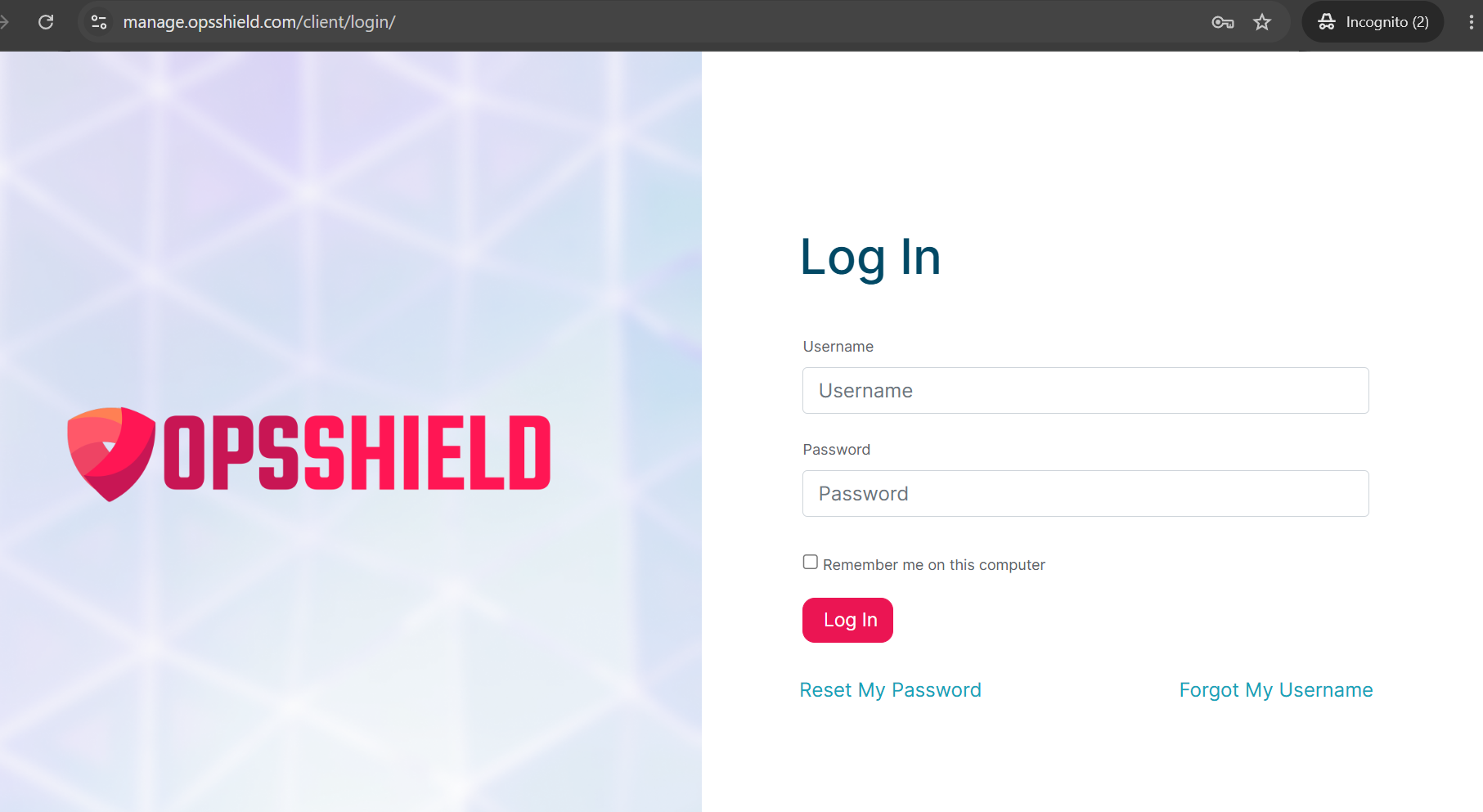
- Open https://manage.opsshield.com
- Click Login
- Enter your registered email address and password
- Complete two-factor authentication if enabled
Creating an Account
An OPSSHIELD client account is usually created when:
- Purchasing a license or trial
- Receiving an invitation to manage servers
- Being invited by another account owner
During Registration
You may be asked to provide:
- Full name
- Email address
- Password
- Company name (optional)
- Billing address
[!TIP] Use a permanent business email address whenever possible. License notices, invoices, and security notifications are sent there.
Resetting Your Password
If you have forgotten your OPSSHIELD client portal password, you can reset it in just a few steps directly from the login page. This guide walks you through the full process.
Before You Begin — Know Your Username
Your OPSSHIELD username is the email address you used when creating your account at the time of purchase. If you are unsure which email address that was, check your inbox for any order confirmation or welcome emails from OPSSHIELD.
Your username is always your registered email address. Not a custom username you may have chosen elsewhere. Use the email address associated with your OPSSHIELD purchase.
Steps to Reset Your Password
Step 1 : Go to the OPSSHIELD Client Portal Login Page
Open the following URL in your browser:
https://manage.opsshield.com/client/login/
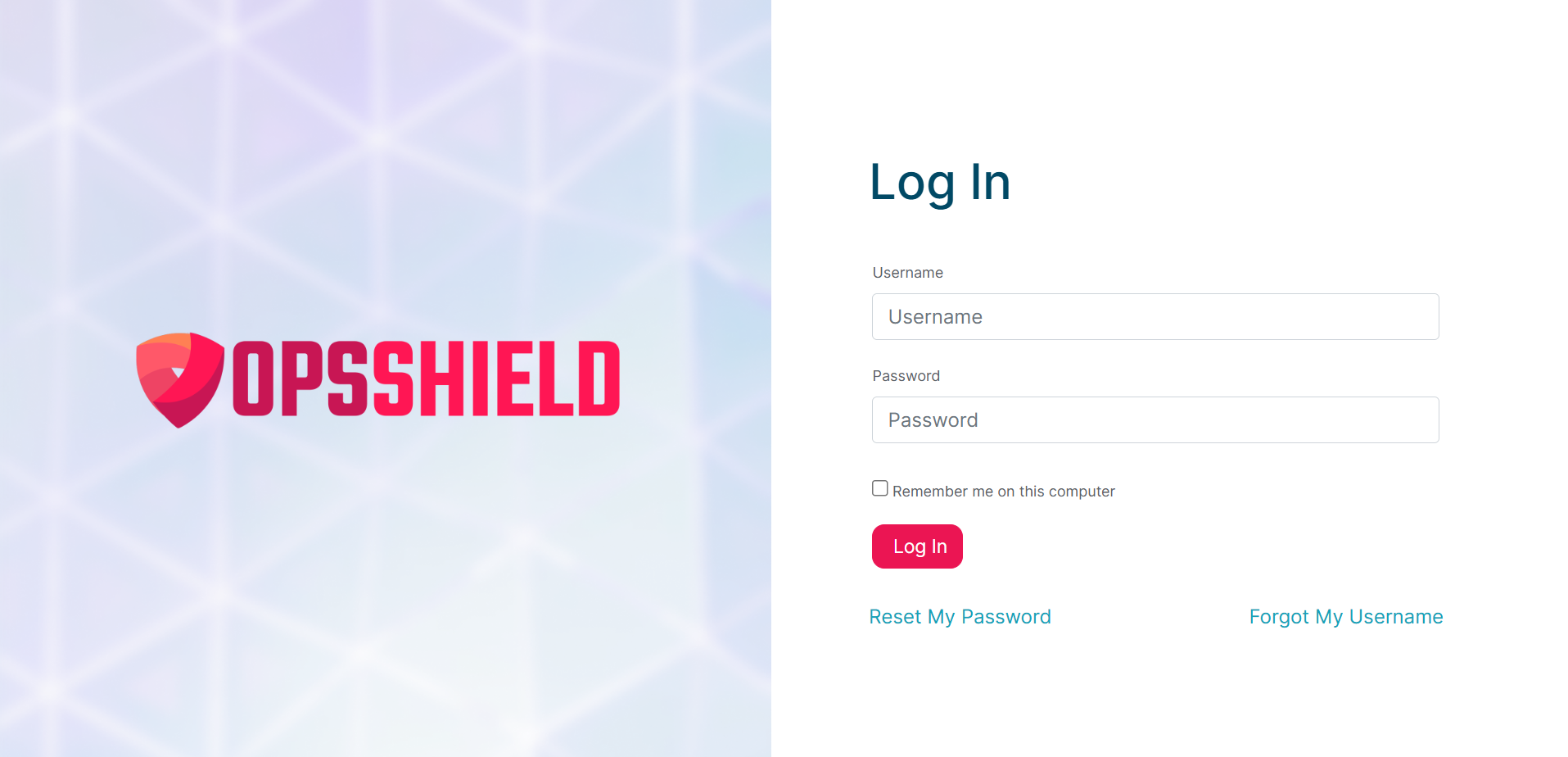
Step 2 : Click "Reset My Password"
On the login page, click the "Reset My Password" link. This takes you to the password reset form.
Step 3 : Enter Your Username and Submit
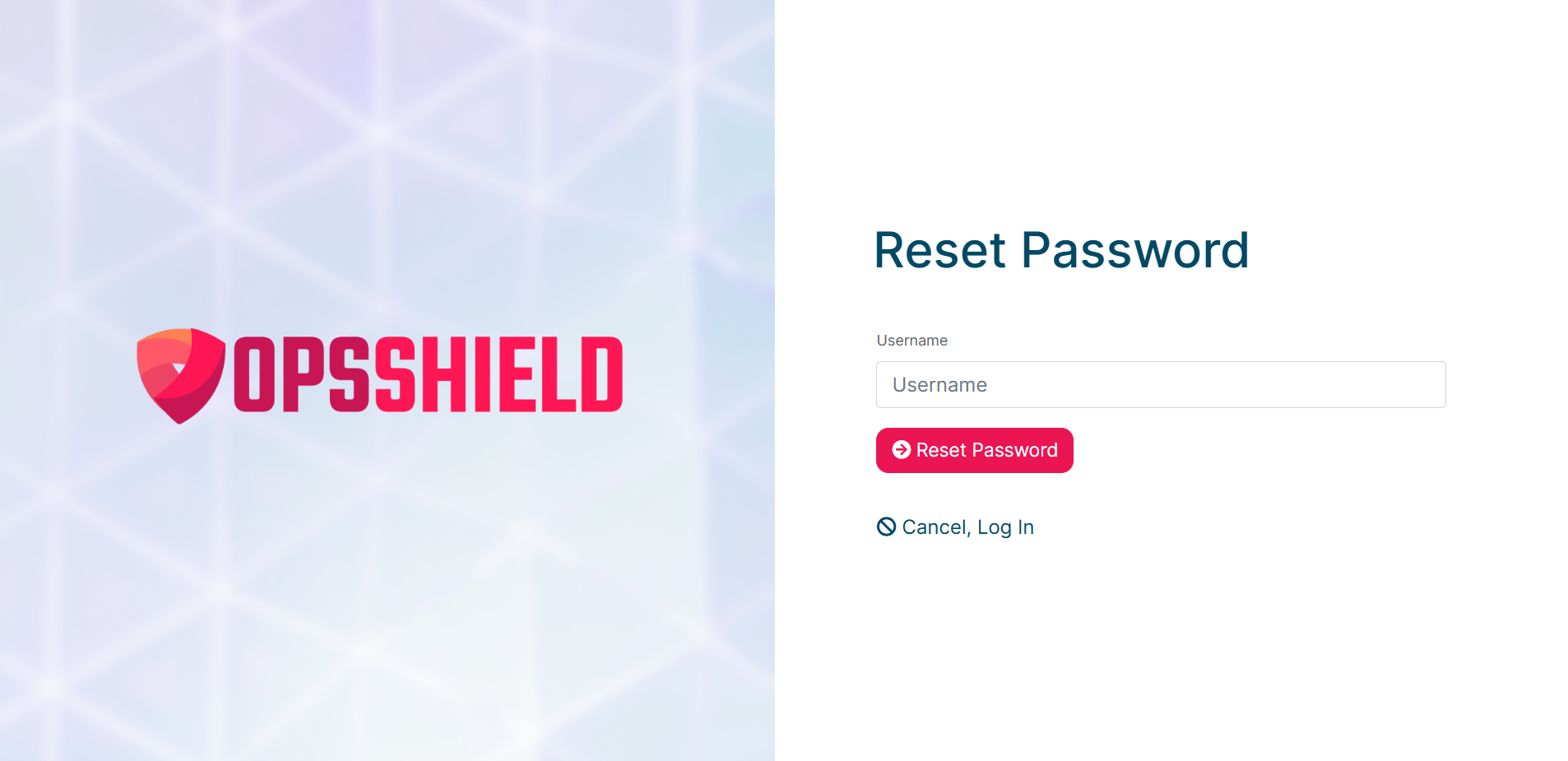
On the password reset form:
- Enter your registered email address in the username field.
- Click the "Reset Password" button.
Step 4 : Check Your Email for the Reset Link
A password reset email will be sent to your registered email address. Open the email and click the reset link inside to set a new password.
If you don't see the reset email in your inbox within a few minutes, check your spam or junk folder. Automated emails from account management systems are sometimes filtered incorrectly.
Password Recommendations
Use a password that includes:
- Uppercase and lowercase letters
- Numbers
- Symbols
- Minimum 12 characters
Avoid:
- Reusing passwords from other services
- Using server hostnames or company names
- Simple dictionary words
Enabling Two-Factor Authentication (2FA)
To enable 2FA on your OPSShield account:
- Go to https://manage.opsshield.com/client/main/edit/
- Select the Authentication tab
- Enable the "Enable Two-Factor Authentication" option
- Scan the QR code using an authenticator app on your mobile device
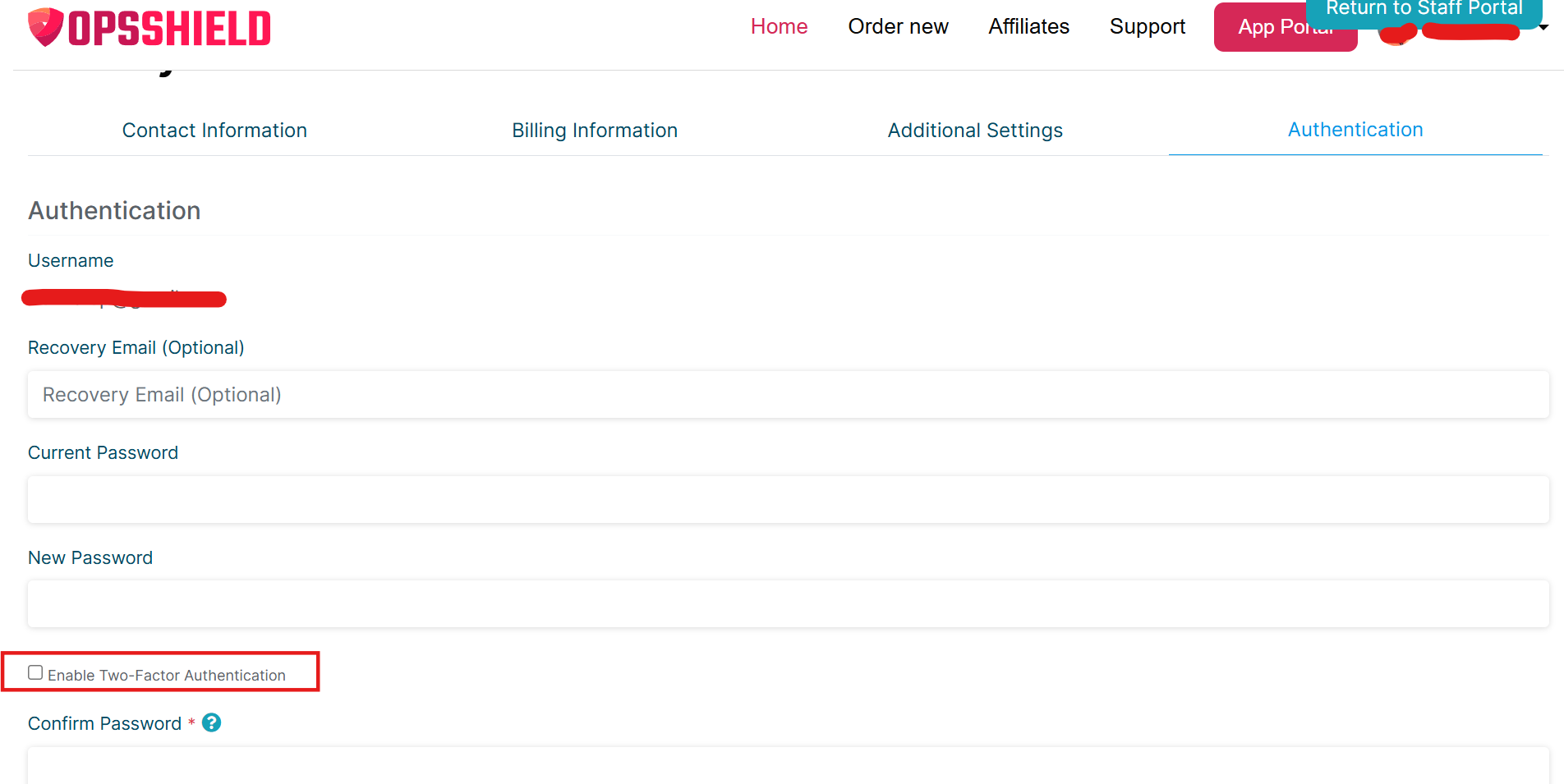
Note: When enabling 2FA, both your OTP token (from the authenticator app) and your account password are required.
You will need to enter your account password in two fields:
- Current Password
- Confirm Password
Make sure to enter the correct password in both fields along with the right OTP token from your device for 2FA to be enabled successfully.
Recommended Authenticator Apps
- Google Authenticator
- Microsoft Authenticator
- Authy
- 1Password
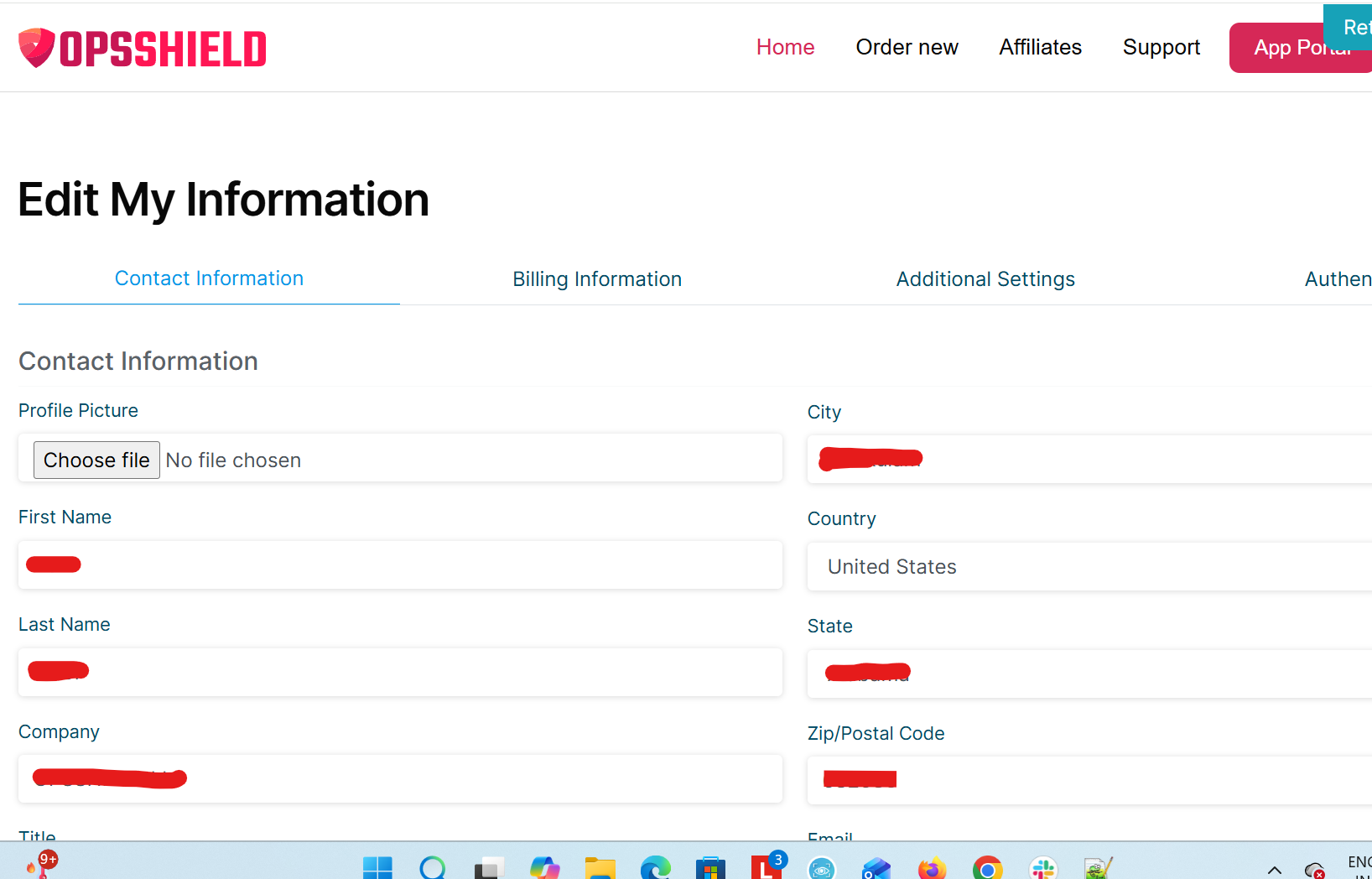
Changing or edit My information
- Go to https://manage.opsshield.com/client/main/edit/
- Select the contact information tab
Frequently Asked Questions
I forgot both my password and 2FA device
Open a support ticket from the client area and provide sufficient account verification details.
Can multiple people use the same account?
This is not recommended. Instead, invite additional users and assign proper permissions.
Why am I not receiving emails?
Check spam filtering, DNS issues, or email forwarding rules. Also ensure your registered email address is correct.
Can I change my registered email later?
Yes. You can update it from the profile settings page.