Whitelist Rules
Whitelist specific WAF rules that cause false positives or block legitimate traffic for your applications. Each rule is identified by a unique Rule ID.
When to Whitelist Rules
Whitelist a rule when:
- Legitimate requests are blocked (false positive)
- Your application requires specific patterns that trigger security rules
- Testing confirms the blocked traffic is safe for your environment
- The rule is too aggressive for your specific use case
Only whitelist rules after confirming the blocked traffic is legitimate. Whitelisting removes protection for that attack pattern.
Find the Rule ID
Before whitelisting, identify the Rule ID that triggered the block:
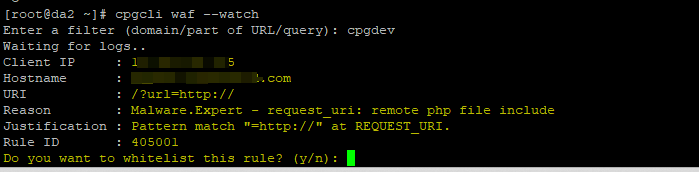
Method 1: Using Watch Mode (Recommended)
cpgcli waf --watch
Enter a filter pattern (IP, domain, or URI), then recreate the incident. The Rule ID will be displayed.
Method 2: From App Portal
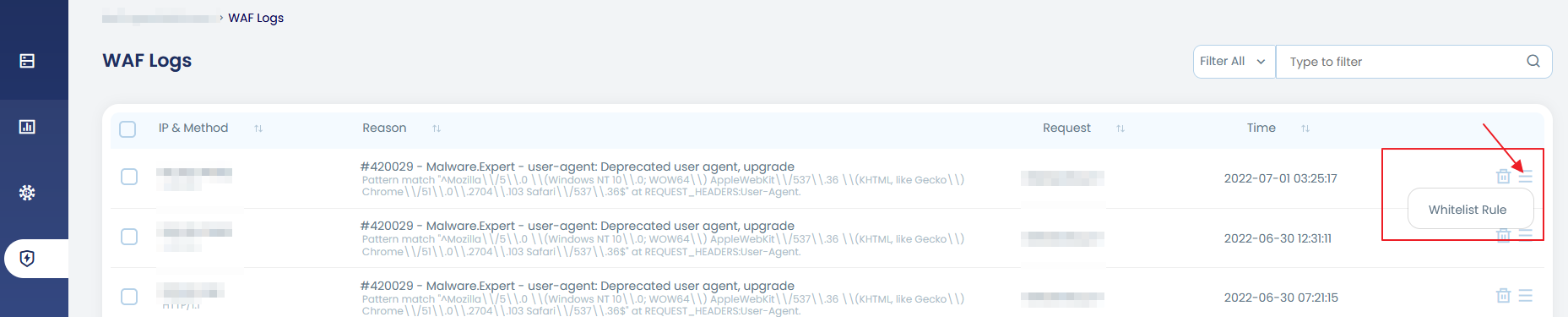
- Log in to App Portal → Select your server
- Navigate to Security → WAF Logs
- Find the blocked request
- Note the Rule ID from the log entry
Method 3: From Web Server Logs
Check ModSecurity audit logs:
grep "id:" /var/log/modsec_audit.log
Look for the id: field in blocked requests (e.g., id: 4500006).
Add Rule to Whitelist
Once you have the Rule ID, add it to the whitelist.
Using CLI
Add a single rule:
cpgcli waf --whitelist --add 4500006
Add multiple rules at once:
cpgcli waf --whitelist --add 4500006
cpgcli waf --whitelist --add 4500007
cpgcli waf --whitelist --add 4500008
Using App Portal
- Log in to App Portal → Select your server
- Navigate to Settings → WAF
- Scroll to Whitelisted Rules section
- Enter the Rule ID
- Click Add to Whitelist
Remove Rule from Whitelist
If you need to re-enable protection, remove the rule from the whitelist.
Using CLI
cpgcli waf --whitelist --remove 4500006
Using App Portal
- Log in to App Portal → Select your server
- Navigate to Settings → WAF
- Find the rule in Whitelisted Rules section
- Click Remove next to the Rule ID
Apply Changes
WAF configuration updates apply after a time delay (usually 1-2 minutes) and are typically followed by a web server restart.
Verify the change:
- Wait 1-2 minutes after whitelisting
- Recreate the previously blocked request
- Confirm the request succeeds
- Check WAF logs to verify the rule no longer triggers
View Whitelisted Rules
Using CLI
List all whitelisted rules:
cpgcli waf --whitelist --list
Using App Portal
- Log in to App Portal → Select your server
- Navigate to Settings → WAF
- View the Whitelisted Rules section
Common Rules to Whitelist
Some rules frequently require whitelisting for specific applications:
| Rule ID | Description | Common Reason |
|---|---|---|
| 4500006 | XSS Pattern Detection | Rich text editors, HTML form content |
| 4500010 | SQL Injection Pattern | Complex search queries with special chars |
| 4500015 | File Upload Validation | Custom upload validation logic |
| 4500020 | Command Injection | Admin tools with CLI features |
- Whitelist specific Rule IDs rather than disabling entire rule sets
- Document why each rule was whitelisted
- Review whitelisted rules periodically
- Remove whitelisted rules when no longer needed
Whitelist vs. Disable Rule Sets
Whitelist individual rules when:
- Single specific rule causes issues
- You want granular control
- Most rules in the set work correctly
Disable entire rule sets when:
- Multiple rules from one set cause issues
- The entire set is incompatible with your environment
- Testing shows the set is too aggressive
Disable optional rule sets:
cpgcli waf --disable=webshell,rbl
See WAF Overview for rule set details.
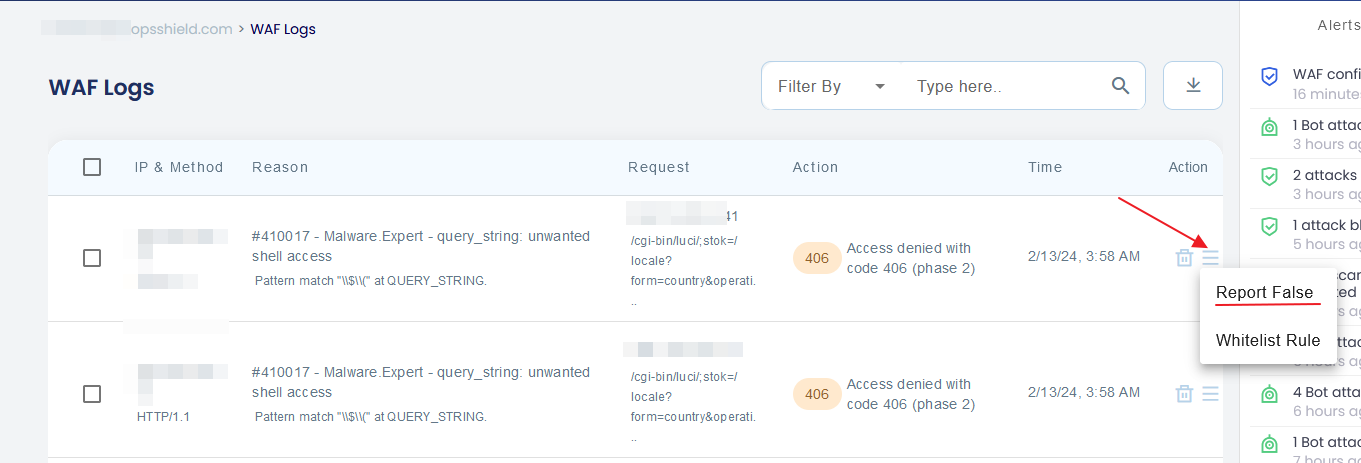
Report a false positive for a WAF Rule Trigger
If you believe that the WAF rule triggered a false positive and the WAF is blocking a legitimate request, you may report it as a false positive. You may do it directly from the WAF logs page. The option to directly report a rule from the action menu against each entry ( refer image below ).
Troubleshooting
Whitelist Not Working
Symptoms: Rule still blocking after whitelisting
Solutions:
- Wait 1-2 minutes for configuration to apply
- Verify correct Rule ID was whitelisted
- Manually restart web server:
# Apachesystemctl restart httpd# Nginxsystemctl restart nginx# LiteSpeed/usr/local/lsws/bin/lswsctrl restart
- Check whitelist was saved:
cpgcli waf --whitelist --list
Wrong Rule Whitelisted
Symptoms: Original issue persists, different Rule ID in new logs
Solutions:
- Use watch mode to confirm exact Rule ID
- Remove incorrect rule from whitelist
- Add correct Rule ID
- Test again
Too Many Rules Whitelisted
Symptoms: Large whitelist, reduced security
Solutions:
- Review all whitelisted rules
- Test if each is still necessary
- Remove rules no longer needed
- Consider if application behavior can be modified instead
Security Considerations
- Whitelisting bypasses protection for specific attack patterns
- Only whitelist after confirming traffic is legitimate
- Document business justification for each whitelisted rule
- Review whitelist during security audits
- Monitor for abuse of whitelisted patterns