cPGuard SRBL
cPGuard SRBL (Spam Real-time Black List) is an advanced spam filtering mechanism that integrates with the Exim mail server. It enhances email security by checking incoming email sender IP addresses against multiple RBL databases and intelligently blocking spam before it reaches the server.
This feature helps reduce unwanted emails and improves server performance by filtering spam at an early stage.
SRBL is not available for all control panels. SRBL is supported only on the following control panels:
- cPanel/WHM
- DirectAdmin
How SRBL Works
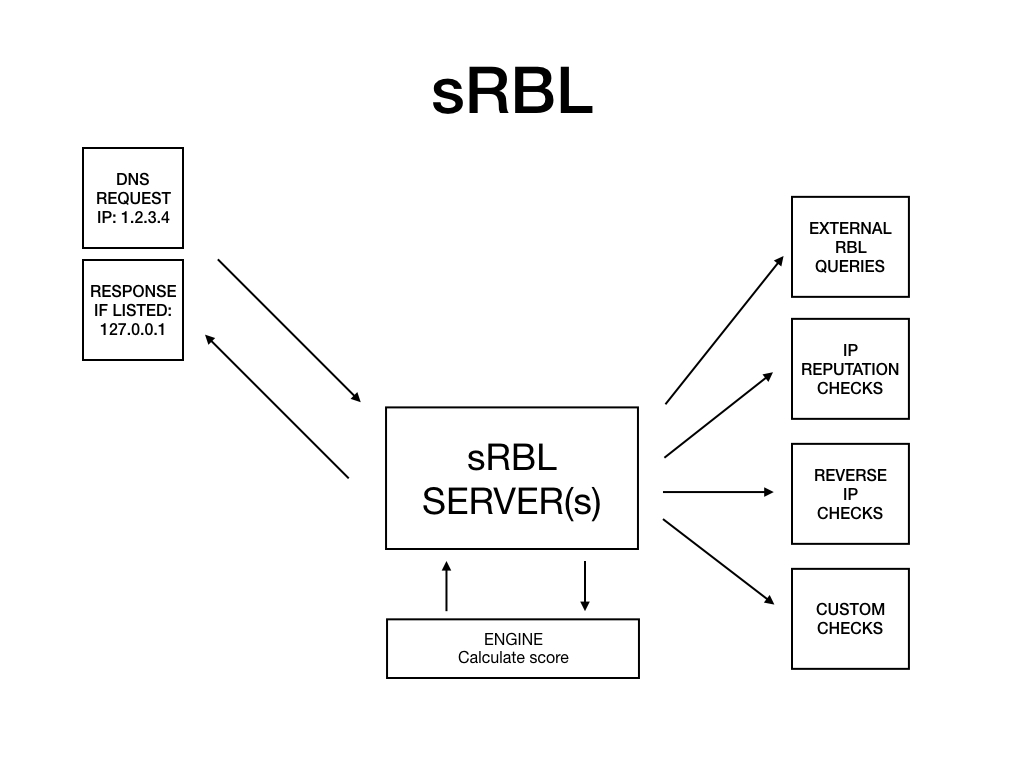
The SRBL system in cPGuard operates as follows:
- When an incoming email is received, Exim extracts the sender's IP address.
- The IP address is checked against multiple RBL (Real-time Black List) databases.
- These may include:
- Abuseat
- Barracuda
- SpamEatMonkey
- cPGuard SRBL (in-house engine)
- Based on the results, the system determines whether the sender is trusted or flagged.
- If the IP is listed in any blacklist, the email is rejected or blocked.
- If the IP passes all checks, the email is accepted and processed normally.
Key Features
- Multi-RBL integration for enhanced spam detection
- In-house SRBL engine for improved accuracy
- Early-stage spam filtering (before mail queue processing)
- Reduced server load and improved performance
- Seamless integration with Exim
Prerequisites
- cPGuard installed and configured
- Exim mail server running
- Root or administrative access to the server
Enable or Disable cPGuard SRBL
- Log in to your server control panel.
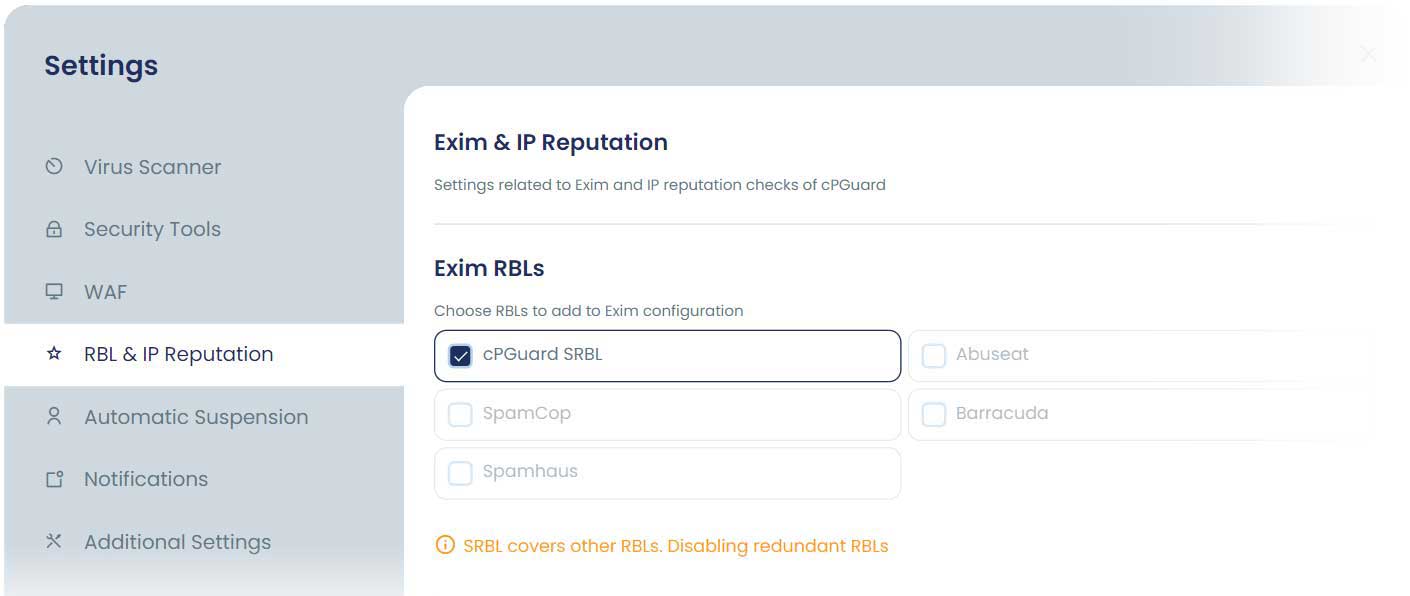
- Navigate to: cPGuard >> Settings >> RBL & IP Reputation
- Locate the "Exim RBLs" section.
- Enable or disable:
- cPGuard SRBL
- Other RBL providers
- Save the changes.
Whitelisting in SRBL
The cPGuard sRBL (Sender Real-time Blacklist) engine is built to block incoming mail from known spam and malicious sources with near-zero false positives. However, there are legitimate scenarios where you may need to exempt a specific local domain or a trusted sender IP address from RBL checking — for example, when a known partner's mail server has an unusual reputation score, or when a local sending domain is being incorrectly flagged.
This section explains how to whitelist both domains and sender IP addresses across cPanel/WHM and DirectAdmin environments.
What Is the cPGuard sRBL?
The cPGuard sRBL is a mail-layer security feature that checks incoming email sender IP addresses against Real-time Blackhole Lists (RBLs) — databases of IP addresses known to send spam or malicious email. If a sending IP is found in any of the configured RBL databases, the incoming mail is rejected before it reaches the mailbox.
Whitelisting tells the RBL check to skip specific domains or IP addresses entirely — ensuring that legitimate mail from trusted sources is never rejected by cPGuard's RBL enforcement.
cPanel / WHM
Whitelist a Local Domain
Whitelisting a domain prevents the RBL check from firing for email sent from or associated with that domain.
Step 1 : Create the skip list file
Log in to your server as root via SSH and create (or edit) the domain skip list file:
nano /etc/skiprbldomains
Add each domain you want to whitelist on a separate line, for example:
trustedpartner.com
internaldomain.net
Save and close the file.
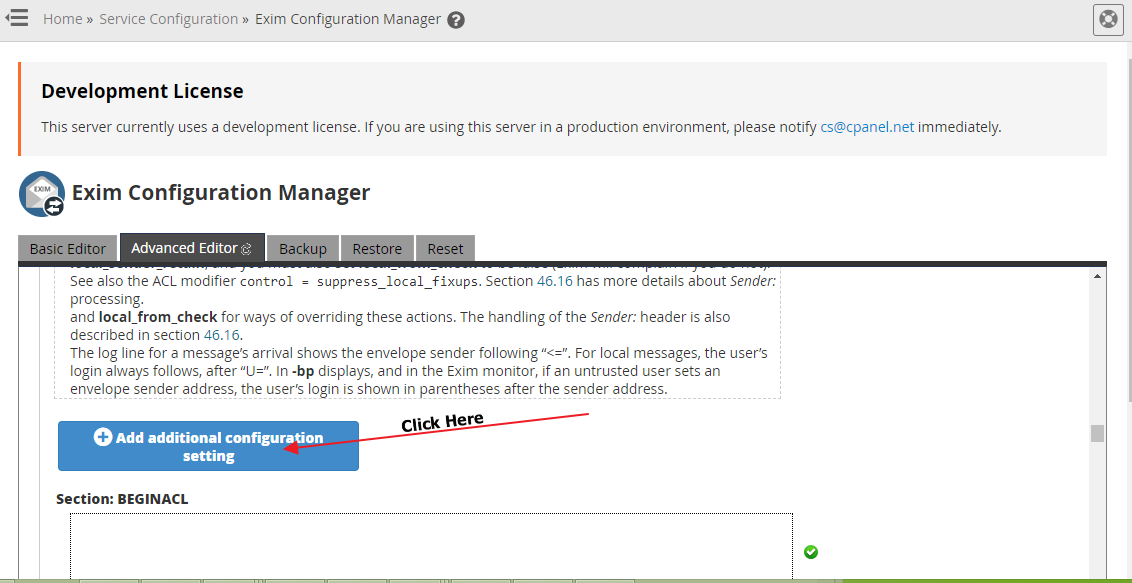
Step 2 : Open the Exim Configuration Manager in WHM
- Log in to WHM.
- Navigate to Exim Configuration Manager.
- Select the Advanced Editor tab.
Step 3 : Add the Domain List Configuration
- Scroll to the "Add Additional Configuration" section and click the button to add a new entry.
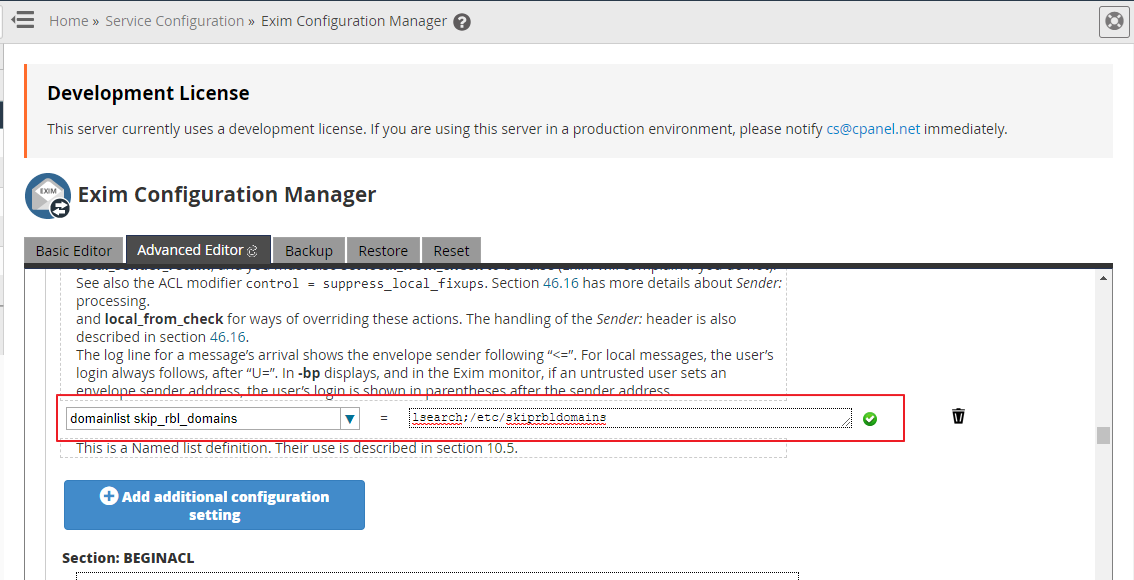
- In the menu/label field, enter:
domainlist skip_rbl_domains
- In the text box, enter:
lsearch;/etc/skiprbldomains
- Click the Save button at the bottom of the interface.
Exim will now skip RBL checks for any domain listed in /etc/skiprbldomains.
To add more domains in the future, simply add new lines to /etc/skiprbldomains. No changes to the Exim configuration are needed after the initial setup.
Whitelist a Sender IP Address
Whitelisting a sender IP address tells Exim to skip RBL checks for email arriving from that specific IP.
Steps:
- Log in to WHM.
- Navigate to Exim Configuration Manager.
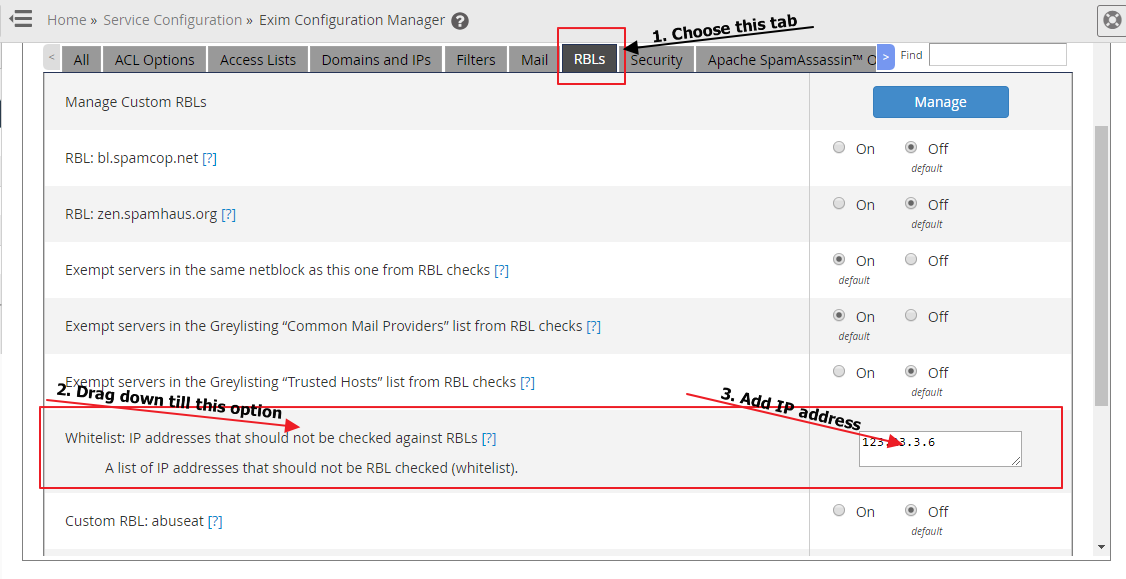
- Click the RBLs tab.
- Scroll down and locate the option labelled: "Whitelist: IP addresses that should not be checked against RBLs"
- Enter the IP address (or addresses) you want to whitelist.
- Save your changes.
For full details on the WHM RBL whitelist interface and its available options, refer to the official cPanel documentation: cPanel RBL Documentation
DirectAdmin
For DirectAdmin servers, the process for exempting a domain from Exim's RBL blocking follows DirectAdmin's own configuration pathway.
Refer to the official DirectAdmin documentation for step-by-step instructions:
How to omit a domain from Exim's RBL blocking – DirectAdmin Docs
When Should You Whitelist?
Whitelisting should be used sparingly and only for genuinely trusted sources. Adding IPs or domains to the whitelist removes a layer of protection for emails from those senders. Always verify that a sender is legitimate before whitelisting.
Common legitimate reasons to whitelist:
- A trusted business partner's mail server has an unusual or outdated IP reputation
- An internal relay server or application sending domain is being blocked
- A bulk email service used by your organisation has IPs that appear in third-party RBLs
- A known newsletter provider used by your users is being rejected
Notes / Best Practices
- Keep SRBL enabled for better spam protection.
- Use multiple RBLs for improved accuracy.
- Monitor mail logs regularly to identify false positives.
- Whitelist trusted IPs when necessary.
Troubleshooting
Emails Getting Blocked Incorrectly
- Verify if the sender IP is listed in RBL databases.
- Whitelist the sender IP if required.
SRBL Not Working
- Ensure Exim is running correctly.
- Verify cPGuard services status.
- Check logs for errors.
High False Positives
- Disable specific RBL providers temporarily.
- Adjust whitelist settings.
Conclusion
cPGuard SRBL integration with Exim provides an effective way to block spam at the source. With proper configuration and monitoring, it helps maintain a secure and efficient email environment.