Initial configuration
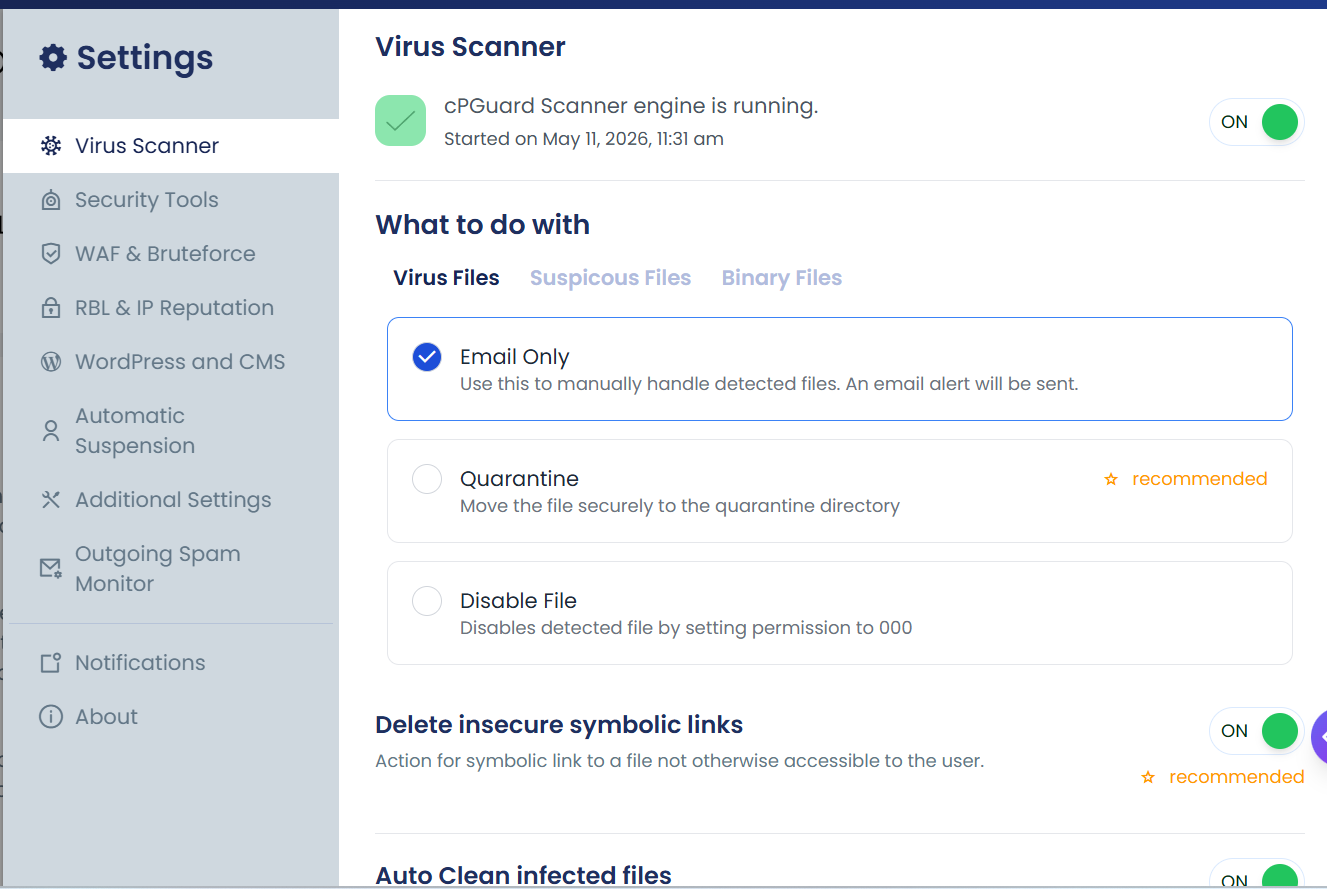
After completing the installation, turn on the recommended modules based on your server's needs.
Recommended features are marked with ☆ recommended in the settings page on the App Portal. Using our recommendations is highly encouraged for maximum protection of your server.
Configuring via UI
You can easily configure cPGuard using the UI from the App Portal:
- Open the App Portal and locate your server from the server list
- Click on the server to open it
- Navigate to Settings from the left side main navigation
Configuring via Command Line
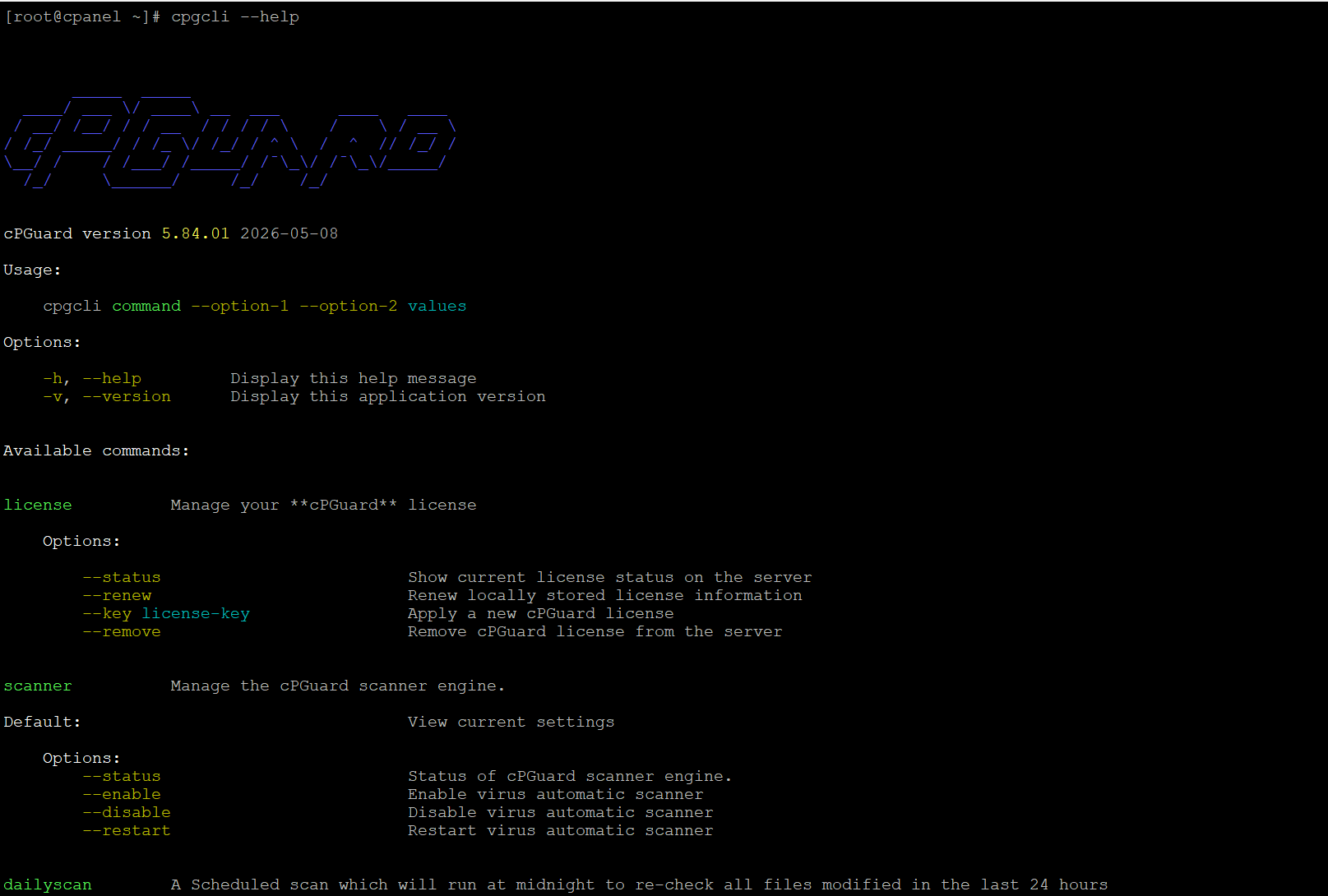
cPGuard provides many command line options to quickly apply various settings.
Exporting & Importing Configuration
If you need to install and configure cPGuard on multiple servers, exporting and importing configuration from the command line is the easiest approach.
Export configuration:
cpgcli config --export
cpgcli config --export=filename
If no filename is provided, the configuration keys and values are displayed on screen, which can be used to create a configuration file manually.
Import configuration on destination server:
cpgcli config --import="filename or url"
Copy the exported file to a public location or directly to the destination server, then run the import command to apply all settings at once.