IPDB
The IPDB (IP Database) is a distributed firewall module that provides proactive protection by blocking known "bad actors" before they reach your server. Operating at the system level, IPDB stops various attacks before they consume application server resources, providing an efficient first line of defense.
Unlike reactive security that responds to attacks on your specific server, IPDB leverages collective intelligence from thousands of servers to block threats globally identified by the cPGuard network.
How it Works
IPDB operates through two main components that work together to provide real-time threat protection:
1. The Cloud Advisor
The Cloud Advisor is a dedicated server cluster containing multiple servers focused on collecting, building, and distributing a comprehensive list of unsafe IPs.
Data Sources:
- cPGuard Network: Collects data from attacks blocked across all servers running cPGuard:
- WAF (Web Application Firewall) hits
- Brute-force login attempts
- CSF (ConfigServer Firewall) blocks
- Suspicious patterns in access logs
- Partner Networks: Integrates threat intelligence from partners like Malware.Expert
- Third-party Sources: Incorporates data from external threat intelligence feeds
Intelligent Scoring:
The Cloud Advisor doesn't simply aggregate all reported IPs. Advanced algorithms dynamically score IPs based on multiple parameters:
- Attack frequency and severity
- Attack types and patterns
- Geographic distribution
- Temporal patterns
False Positive Prevention:
Major service providers are automatically whitelisted to prevent false positives:
- Cloudflare edge servers
- Google services (crawlers, APIs)
- Major CDN providers
- Legitimate monitoring services
The result is a refined list containing only the latest and most relevant threats, minimizing false positives while maximizing protection.
2. The Server Agent
The Server Agent is the cPGuard application running on your server that implements the IPDB blocklist locally.
How it operates:
- Downloads the refined IP blocklist from the Cloud Advisor
- Creates firewall rules using IPSET and IPTABLES for efficient packet filtering
- Blocks requests from malicious IPs at the kernel level before they reach application services
- Periodically reloads the blocklist (default: every 2 hours) to:
- Fetch newly identified threats
- Remove outdated entries that have been cleared
- Keep the blocklist size optimized
Technical Implementation:
- Uses IPSET for efficient IP list management (hash-based lookups)
- Integrates with IPTABLES/NFT for actual packet filtering
- Minimal performance overhead even with thousands of blocked IPs
- Operates in kernel space for maximum speed
3. Local Synchronization
Your server agent downloads the refined blocklist regularly to ensure you are protected against the latest relevant threats. The synchronization happens automatically every 2 hours without manual intervention.
Configuration
Enabling IPDB Firewall
Via App Portal:
- Navigate to cPGuard > Protection > Firewall
- Locate the IPDB Distributed Firewall section
- Enable the IPDB Switch
- Optionally enable IPDB Log Switch to record blocks

Via CLI:
cpgcli fw --ipdb enable
Get complete firewall help:
cpgcli fw --help
IPDB is integrated as part of the firewall module, so all firewall commands are accessible through the cpgcli fw interface.
Disabling IPDB Firewall
If you need to temporarily disable IPDB protection for testing or troubleshooting:
Via App Portal:
- Navigate to cPGuard > Protection > Firewall
- Locate the IPDB Distributed Firewall section
- Disable the IPDB Switch
Via CLI:
cpgcli fw --ipdb disable
Disabling IPDB removes all IPDB-based blocks but preserves your other firewall rules. Re-enabling IPDB will restore protection within the next synchronization cycle.
IPDB Logging
To prevent logging overhead on high-traffic servers, IPDB logging is optional and can be enabled or disabled independently from the IPDB module itself.
Why optional logging?
- Heavy servers may receive thousands of malicious connection attempts daily
- Logging every blocked packet can generate significant disk I/O
- For production servers, enable logging only when troubleshooting
Enable or disable logging:
Toggle the IPDB Log Switch when enabling/disabling the IPDB module via the App Portal, or use CLI parameters.
Via CLI:
cpgcli fw --ipdb-log enable|disable
Log Location
When logging is enabled, blocked attempts are recorded in system kernel logs:
/var/log/messages
/var/log/kern.log
Example log entries:
Nov 10 13:02:13 server kernel: IPDB Blocked: IN=eth0 OUT= MAC=e:00:00:00:01:01:08:00 SRC=x.x.x.x DST=y.y.y.y LEN=60 TOS=0x00 PREC=0x20 TTL=49 ID=59669 DF PROTO=TCP SPT=31310 DPT=465 WINDOW=29200 RES=0x00 SYN URGP=0
Nov 10 13:02:15 server kernel: IPDB Blocked: IN=eth0 OUT= MAC=e:00:00:00:01:01:08:00 SRC=x.x.x.x DST=y.y.y.y LEN=60 TOS=0x00 PREC=0x20 TTL=49 ID=59670 DF PROTO=TCP SPT=31310 DPT=465 WINDOW=29200 RES=0x00 SYN URGP=0
Log details include:
- Source IP (
SRC) and destination IP (DST) - Protocol (TCP/UDP) and ports
- Network interface
- Packet characteristics
IPDB CAPTCHA
The IPDB CAPTCHA feature allows users whose IP addresses are blocked by IPDB to verify themselves by completing a CAPTCHA challenge instead of being denied access immediately.
When this feature is enabled, visitors accessing the website from an IP that has been blocked by IPDB will be redirected to a CAPTCHA verification page. After successfully completing the CAPTCHA, access to the website is restored automatically.
This feature helps reduce false positives by allowing legitimate users to regain access without requiring manual intervention.
To enable or disable IPDB CAPTCHA from the cPGuard App Portal:

- Navigate to Protection → Firewall.
- Locate the IPDB CAPTCHA option.
- Toggle the option On or Off as required.
You can also enable, disable, or check the status of IPDB CAPTCHA using the cpgcli command.
Enable IPDB CAPTCHA:
cpgcli fw --ipdb-captcha enable
Disable IPDB CAPTCHA:
cpgcli fw --ipdb-captcha disable
Check the current status:
cpgcli fw --ipdb-captcha
How It Works
When IPDB CAPTCHA is enabled:
- A visitor attempts to access a website.
- If the visitor's IP address is blocked by IPDB, they are redirected to the CAPTCHA verification page.
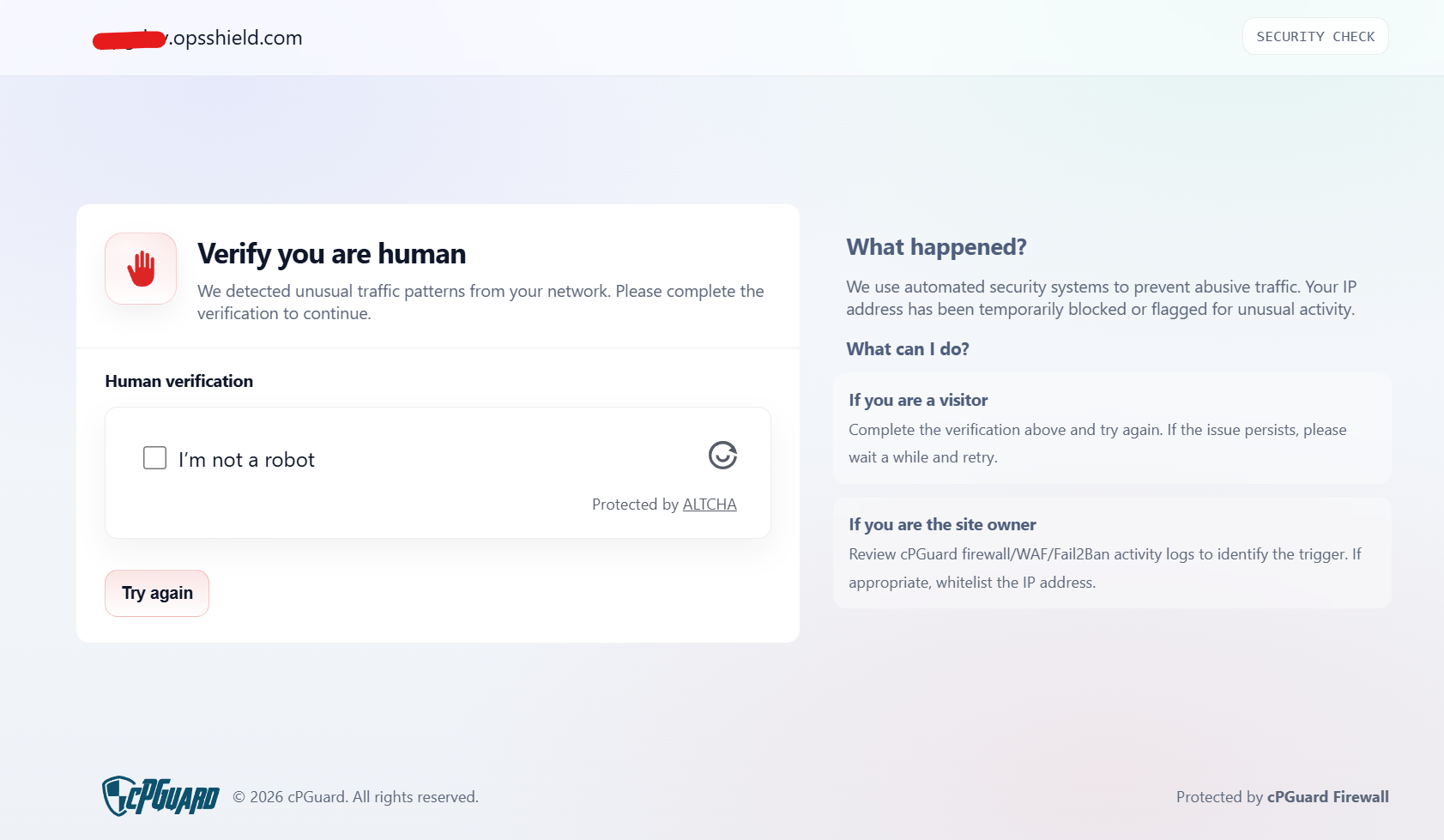
- Once the visitor successfully completes the CAPTCHA:
- The IP address is automatically removed from the IPDB block.
- The visitor immediately regains access to the website.
Verifying IPDB is Working
After enabling IPDB, confirm it's functioning properly using these methods:
Method 1: Check Log Files
Enable IPDB logging and monitor the kernel logs:
tail -f /var/log/messages | grep "IPDB Blocked"
Or for systems using kern.log:
tail -f /var/log/kern.log | grep "IPDB Blocked"
If IPDB is working, you should see blocked connection attempts from known malicious IPs.
Method 2: Check IPSET Status
Verify the IPDB blocklist is loaded:
ipset list | grep -i cpguard
This shows the loaded IPSET containing blocked IPs.
Method 3: Check via App Portal
Navigate to cPGuard > Protection > Firewall > IPDB page to view:
- Current IPDB status (enabled/disabled)
- Number of IPs in the blocklist
- Last synchronization time
- Recent blocked attempts
Checking Specific IPs
To check whether a specific IP is blocked by IPDB Firewall:
Via App Portal:
- Navigate to cPGuard > Protection > Firewall > IPDB
- Use the Check IP field
- Enter the IP address
- View the result showing block status and source
Via CLI:
cpgcli ip --check <IP_Address>
Example:
cpgcli ip --check 192.0.2.100
The command returns whether the IP is blocked by IPDB, along with any additional firewall rules affecting it.
Why You Cannot Remove an IP Address from IPDB?
The IPDB blocklist is a list of IPs with a low reputation that is distributed to all servers from the central system. Our system will collect the incident reports related to attacks and analyze the source IPs frequently to build this list. So the blocklist is frequently reviewed, rebuilt, and distributed to all servers periodically. So the block list in IPDB is a dynamic list that will change every time IPDB reloads the list of blocked IPs ( happens every 2 hours on each server).
That said, even if you remove the IP address from the block list, it may appear again while IPDB reloads the block list. That is why we recommend adding the IP address to ignore list, that you wish to remove from the IPDB block list. So when you add IP address in to ignore list, that IP address will constantly be excluded from the IPDB block list.
Whitelisting IPs in IPDB
If a legitimate IP is incorrectly blocked by IPDB, or you want to ensure specific IPs bypass IPDB checks, add them to your firewall ignorelist.
Via CLI:
cpgcli ip --ignore <IP_Address> --reason 'reason or comment'
Example:
cpgcli ip --ignore 203.0.113.50 --reason 'Partner API server'
Supported IP Formats
Single IP address:
cpgcli ip --ignore 1.2.3.4 --reason 'Office IP'
CIDR range:
cpgcli ip --ignore 1.2.3.0/24 --reason 'Corporate network'
IPv6 addresses:
cpgcli ip --ignore 2001:db8::1 --reason 'Monitoring service'
Whitelisted IPs bypass IPDB blocks and Fail2Ban rules, but the WAF continues to inspect HTTP/HTTPS traffic from these addresses.
Troubleshooting & Support
Common Issues
IPDB not blocking attacks:
- Verify IPDB is enabled:
cpgcli fw --ipdb enable - Check last synchronization time in App Portal
- Ensure server can reach Cloud Advisor (check network connectivity)
- Review firewall logs for IPDB entries
Legitimate traffic blocked:
- Check if IP is in IPDB:
cpgcli ip --check <IP> - Add the IP to ignore list if confirmed legitimate
- Report false positive to support for Cloud Advisor adjustment
High server load:
- Disable IPDB logging if enabled on high-traffic servers
- Verify IPSET is being used (more efficient than individual rules)
Need More Help?
If you need additional details or have suggestions to enhance the IPDB module, reach out to our support team. We're happy to assist with configuration, troubleshooting, or feature requests.
See the Support page for contact options.