Cron Monitor
cPGuard's Cron Monitor watches cron jobs across the server and alerts on suspicious cron activity.
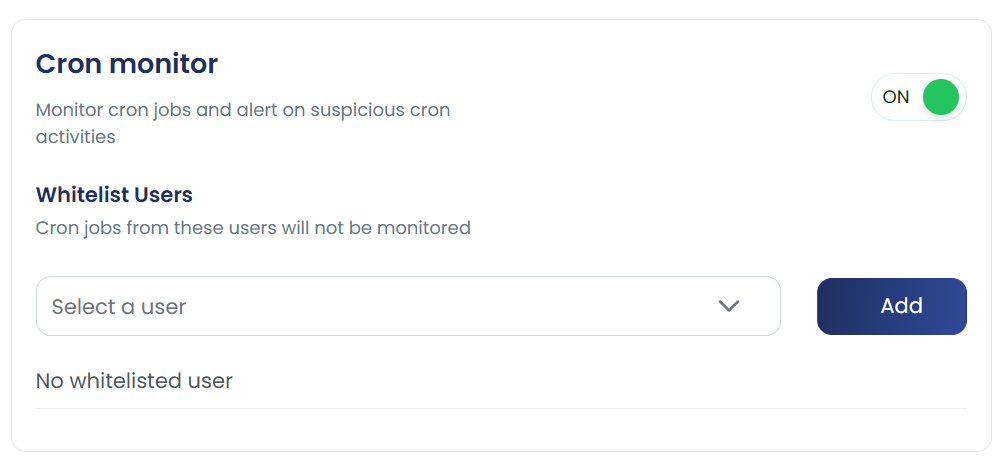
UI path: Settings > Additional Settings > Cron Monitor
How It Works
A common attack pattern on compromised servers is malware re-infection via cron jobs. Here is how it typically happens:
- A malicious cron job is planted on the server — often under a compromised user account.
- The cron job runs on a schedule and downloads and executes a malware payload using commands like
wgetorcurl. - cPGuard's Virus Scanner detects and cleans the infected file.
- However, the cron job runs again and re-downloads the same malware, causing repeated re-infection.
This cycle continues until the malicious cron job itself is identified and removed.
The Cron Monitor breaks this cycle by scanning cron files for known malicious patterns and alerting the admin so the root cause (the cron job) can be eliminated, not just the payload.
cPGuard maintains a list of known malicious cron patterns and continuously identifies and removes similar threats as they are discovered, helping prevent re-infection before the virus scanner even needs to act.
Enable / Disable
# Enable Cron Monitor
cpgcli cron-monitor --enable

# Disable Cron Monitor
cpgcli cron-monitor --disable
Whitelist Users
Cron jobs belonging to whitelisted users will not be monitored or flagged.
# List all whitelisted users
cpgcli cron-monitor --whitelist-users --list

# Add a user to the whitelist
cpgcli cron-monitor --whitelist-users --add <username>

# Remove a user from the whitelist
cpgcli cron-monitor --whitelist-users --remove <username>
Notes
- If a client reports repeated malware re-infections, a malicious cron job is very likely the cause — enable Cron Monitor and check alerts immediately.
- Whitelist trusted system or application users to reduce false positives.
- Cron Monitor works best alongside the Virus Scanner and Process Monitor for full coverage against persistent malware.