Configuring Telegram Notifications
The Telegram Notifications feature allows cPGuard to send incident notifications directly to Telegram accounts or groups. Users can configure Telegram integration by creating a Telegram bot, adding the bot token, and selecting the required chat(s) where notifications should be delivered.
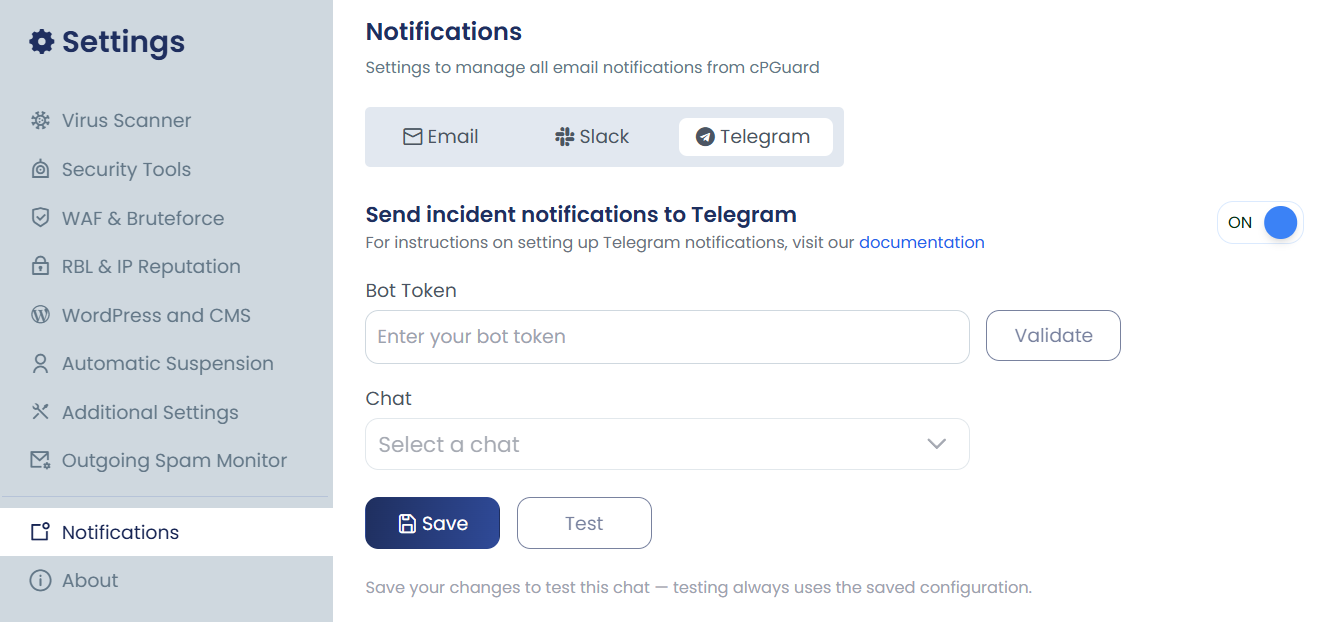
Enable Telegram Notifications
To enable Telegram notifications:
- Navigate to Settings → Notifications → Telegram.
- Enable the Send incident notifications to Telegram option.
- Enter the Telegram Bot Token.
- Select the required Chat(s) from the available list.
- Click Save to apply the configuration.
- Use the Test option to verify that notifications are delivered successfully.
Creating a Telegram Bot and Obtaining the Bot Token
Before configuring Telegram notifications, you must create a Telegram bot and obtain its API token.
- Open the Telegram application.
- Search for @BotFather.
- Open the verified BotFather account.
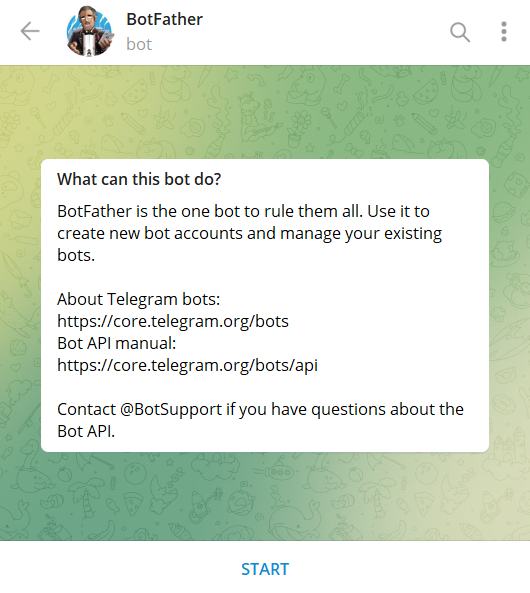
- Send the following command:
/newbot
- Enter a name for your bot when prompted.
Example:
My Product Notifications
- Enter a unique username for the bot. The username must end with bot.
Example:
my_product_notifications_bot
- Once the bot is created successfully, BotFather will provide a Bot Token.
Example:
123456789:AAExampleBotToken
- Copy the token and paste it into the Bot Token field in cPGuard.
Keep the bot token private and secure. Anyone with access to the token may be able to control your Telegram bot.
Obtaining Telegram Chats
The Chats dropdown in cPGuard displays the Telegram accounts or groups where incident notifications can be delivered.
To make a chat available in the dropdown, the created Telegram bot must first receive the /cpguard command from the required chat.
Individual Telegram Account
To receive notifications on an individual Telegram account:
- Open Telegram.
- Search for the bot you created.
- Open the bot conversation.
- Click Start or send the following command:
/cpguard
The Telegram account will now appear in the cPGuard Chats dropdown.
Telegram Group
To send notifications to a Telegram group:
- Open the required Telegram group.
- Open the group information page.
- Select Add Members.
- Search for the bot username.
- Add the bot to the group.
- Send the following command in the group:
/cpguard
- Return to cPGuard. The group will now appear in the Chats dropdown.
Chat Availability
The available chat list is updated based on recent bot activity.
If a previously configured chat no longer appears in the Chats dropdown after approximately 24 hours, send the following command again from the required Telegram account or group:
/cpguard
The chat will then become available for selection again.
Testing Telegram Notifications
After completing the Telegram configuration:
- Select the required chat(s) from the Chats dropdown.
- Click Save to store the configuration.
- Click Test to send a test notification.
- Verify that the notification is received successfully in the selected Telegram chat.