Domain Management
In cPGuard X control panel, you can enhance your website’s flexibility and reach by adding alias domains (also known as parked domains) , addon domains, and changing the document root location.
- Alias Domains serve the same content as your primary website.
- Addon Domains allow hosting of entirely separate websites under the same account.
- The Document Root is the directory from which your web server serves website files. You can change the document root to point a domain to a different directory based on your website structure or application requirements.
You can manage a websites domains and their document roots by:
- Click on the Websites section from the sidebar or dashboard.

- Select the website for which you want to manage domains.

- Click on the Domains tab.

Add an Alias Domain
To add an alias domain:
- Click the + Add Domain button.

- Choose the Alias tab.
- Enter the alias domain name (e.g.,
myotherdomain.com). - By default, the alias will share the same document root and display the same content as the primary domain.
- To ensure the alias redirects visitors to your main domain (for SEO or branding purposes), check the “Redirect to primary domain” option.
- Click Add to complete the setup.

Once added, the alias will appear in the domain list associated with the selected website.
Add an Addon Domain
To add an addon domain:
- Click the + Add Domain button.
- Choose the Addon tab.

- Enter the new domain name you want to add (e.g.,
anotherwebsite.com). - Choose the document root directory:
- Specify a custom path (e.g.,
/home/user/anotherwebsite) - Or let the system create a new root directory automatically
- Specify a custom path (e.g.,
- Click Add to finalize the addon domain.
The addon domain will function as an independent website with its own content, even though it shares the same hosting account.
Change Website Document Root
You can change the document root of an existing domain from the Domains tab.
You may need to change the document root when moving a website, deploying a new version, hosting applications like Laravel or Symfony, separating application files for security, or testing a new website version before making it live.
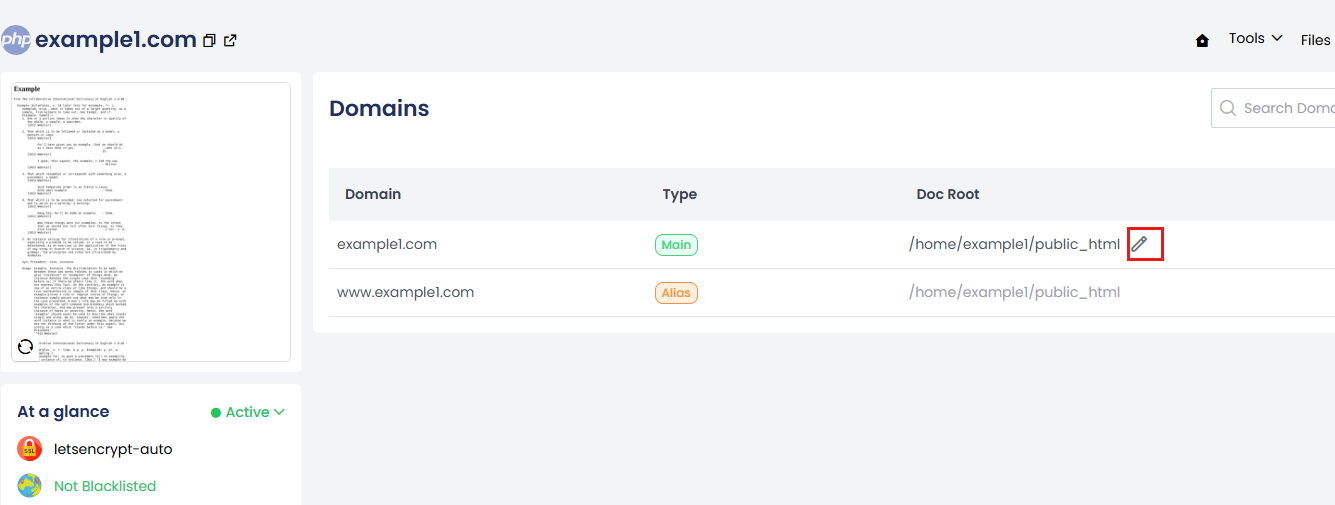
- From the Domains tab, locate the domain for which you want to change the document root.
-
Click the Edit (✏️) icon next to the Document Root field.
-
Enter the new document root path.
Example:
/home/user/public_html
or
/home/user/myapp/public
- Click Update to save the changes.
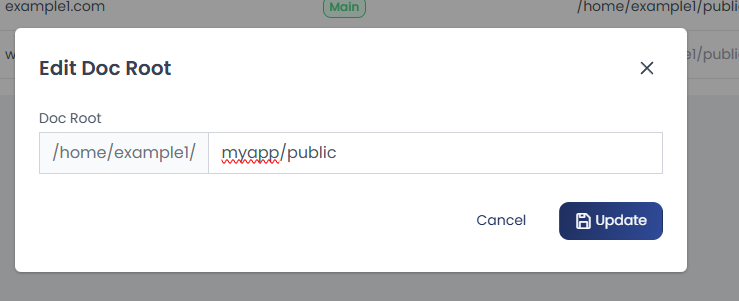
The web server configuration will be updated automatically.
Verify the Change
After updating the document root:
- Visit your website in a browser.
- Ensure the correct content is being served.
- Verify that the specified directory exists and contains the website files.
- Confirm that the web server user has appropriate permissions to access the directory.
- Ensure the new document root path exists before updating.
- The directory should contain the website's entry file (such as
index.phporindex.html). - Incorrect document root paths may result in 404 Not Found, 403 Forbidden, or 500 Internal Server Error responses.
- If your application uses a framework (for example, Laravel), ensure the document root points to the framework's public directory rather than the project root.