Service Management and Monitoring
cPGuard X gives you full control over your server's key services directly from the control panel — no SSH or command-line access needed. You can start, stop, restart, and monitor services all from a single, easy-to-use interface.
Supported Services
The control panel covers the following services:
| Service | Description |
|---|---|
| Nginx | High-performance web server and reverse proxy |
| Apache | Widely-used HTTP web server |
| OpenLiteSpeed | Lightweight, high-performance open-source web server |
| MySQL | Relational database management system |
| PHP-FPM | PHP FastCGI Process Manager (versions 7.4 to 8.4) |
How to Access Service Management
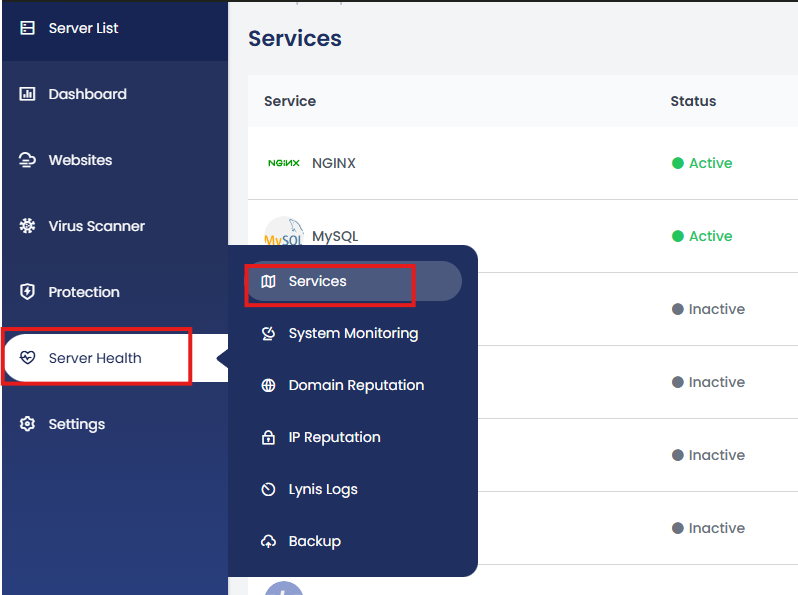
From the main dashboard, navigate to:
Server Health → Services
This opens the Services page where all monitored services are listed along with their current status and resource usage.
What You Can Do on the Services Page
1. Start, Stop, or Restart Services
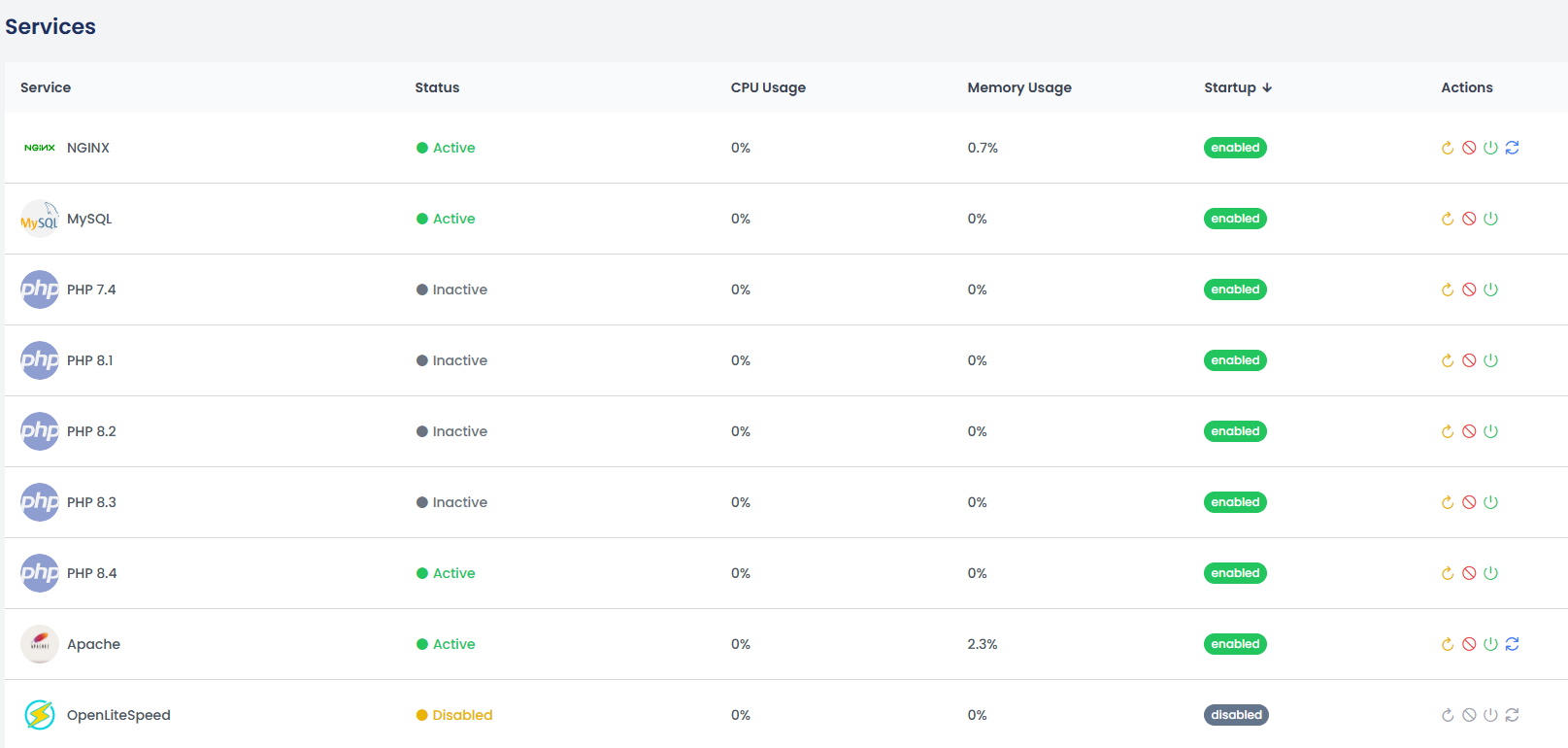
Each service listed has an Action column with controls to:
- Start a service that is currently stopped
- Stop a running service
- Restart a service to apply configuration changes or resolve issues
This is particularly useful after making changes to configuration files, updating PHP settings, or troubleshooting an unresponsive service — without needing to run systemctl or service commands via SSH.
2. View Service Status
At a glance, you can see whether each service is currently running or stopped. This makes it easy to quickly identify any service that may have gone down unexpectedly.
3. Monitor CPU and Memory Usage
The Services page also displays real-time CPU and memory usage for each service. This helps you:
- Identify services consuming excessive resources
- Spot performance bottlenecks before they impact your websites
- Decide whether a service needs to be restarted or its configuration tuned
Practical Use Cases
| Scenario | Action |
|---|---|
| PHP settings changed and need to apply | Restart the relevant PHP-FPM service |
| Website returning 502 Bad Gateway | Check if Nginx or PHP-FPM is running; restart if stopped |
| MySQL queries running slow | Check MySQL CPU/memory usage on the Services page |
| Switching web servers | Stop the current server, start the new one |
| Routine health check | Review all service statuses and resource usage at once |
Summary
The Server Health → Services section in cPGuard X centralises service management and monitoring into a single, intuitive interface. Whether you need to restart PHP-FPM after a config change, check if MySQL is running, or investigate high CPU usage, everything is available without leaving the control panel.