Single Sign-On from control panels
Managing server security shouldn't mean juggling multiple sets of credentials. The Single Sign-On (SSO) feature in the cPGuard Admin Plugin lets administrators jump straight into the cPGuard interface from their hosting control panel. No separate login required.
What Is SSO in cPGuard?
SSO allows a trusted control panel session to authenticate into cPGuard automatically. When an administrator clicks the cPGuard option inside their hosting control panel, they are logged in seamlessly without entering a username or password again.
Authentication is validated at the server level and fully respects the permission boundaries of the control panel.
Supported Control Panels
The SSO feature in the cPGuard Admin Plugin is available on the following hosting control panels:
- cPanel / WHM
- DirectAdmin
- Webuzo
Controlling SSO via CLI
SSO is managed through the cPGuard command-line interface (CLI). You can enable or disable it with a single command.
Enable SSO
cpgcli panel-integration --admin-sso enable
Disable SSO
cpgcli panel-integration --admin-sso disable
How SSO Works When Enabled
Here's the step-by-step flow when SSO is active:
-
The admin or client logs in to their hosting control panel (cPanel, DirectAdmin, or Webuzo).
-
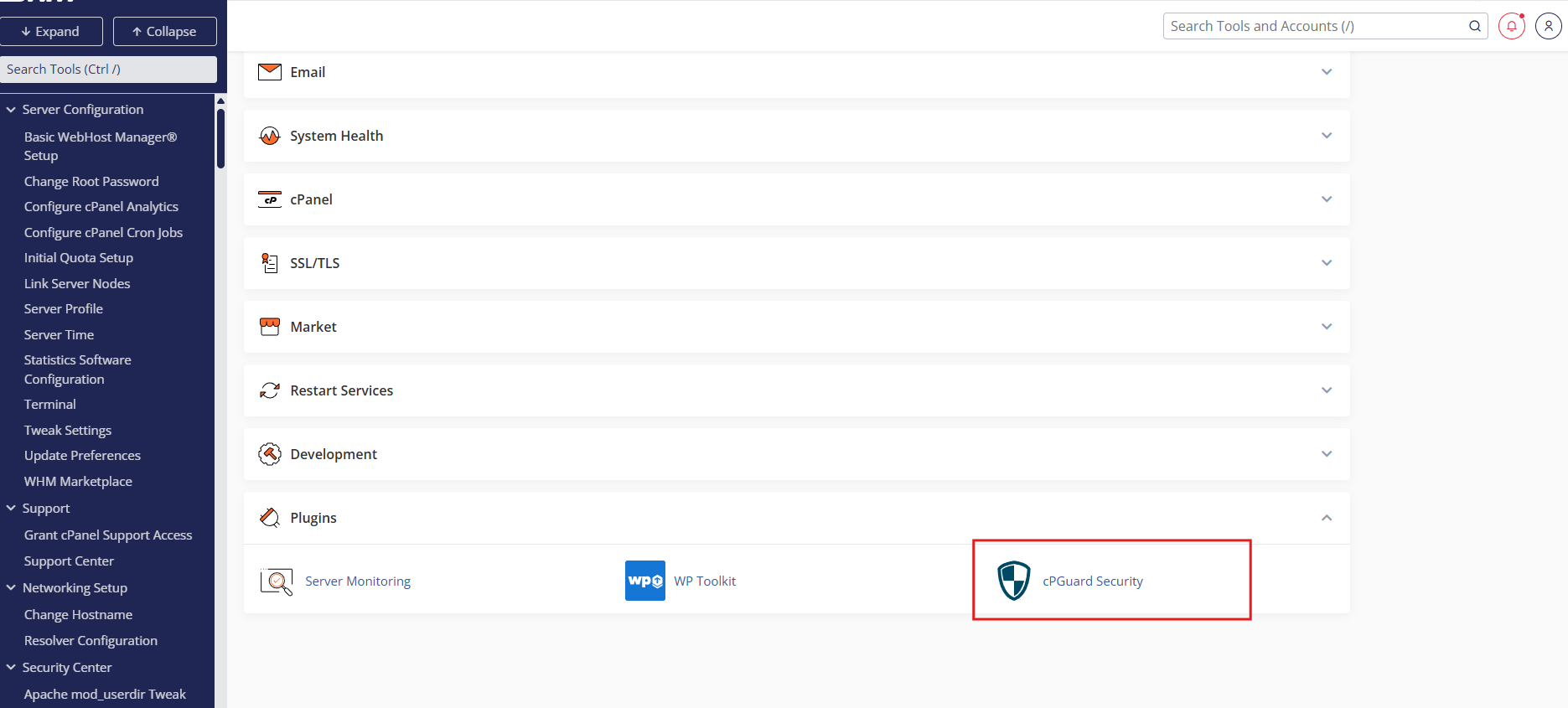
They click the cPGuard Security option inside the control panel.
-
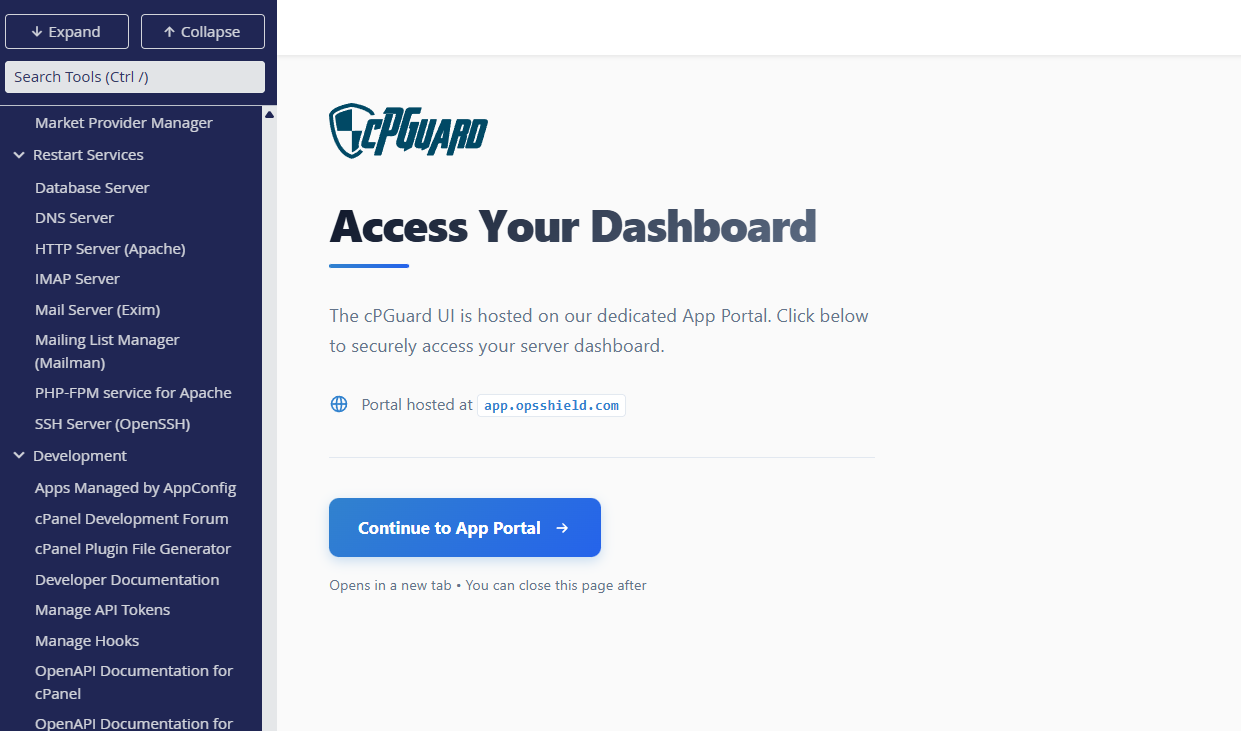
They are redirected to a page with a "Continue to App Portal" button.
-
After clicking it, a brief "Please wait, redirecting to cPGuard…" screen is shown.

-
The user is automatically logged in to the cPGuard App Portal. No username or password needed and Authentication is handled entirely via the existing control panel session.
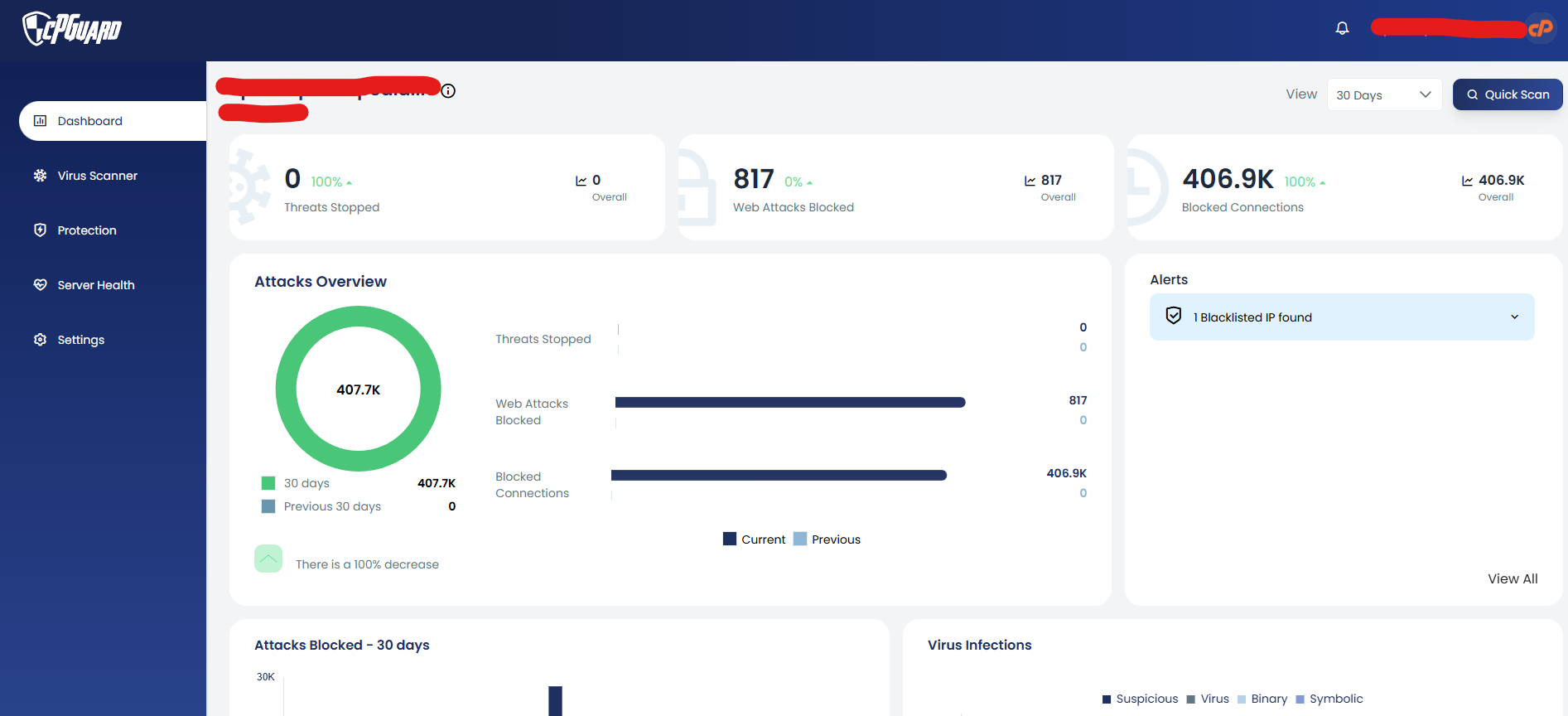
SSO makes it particularly convenient for administrators who are already logged into their control panel and need to quickly check or configure cPGuard security settings.
Access Scope Under SSO
SSO access is intentionally scoped and restricted for security:
| Access Aspect | Behaviour |
|---|---|
| Server access | Only the server the user came from |
| Global server list | Not visible |
| Other servers | Cannot be viewed or managed |
| Authentication required | None. Session is inherited |
This restricted scope makes SSO safe for client-level usage while keeping the experience seamless.
How It Works When SSO Is Disabled
When SSO is disabled, the flow is slightly different:
- The user clicks cPGuard Security in their control panel.
- They are redirected to the "Continue to App Portal" page.
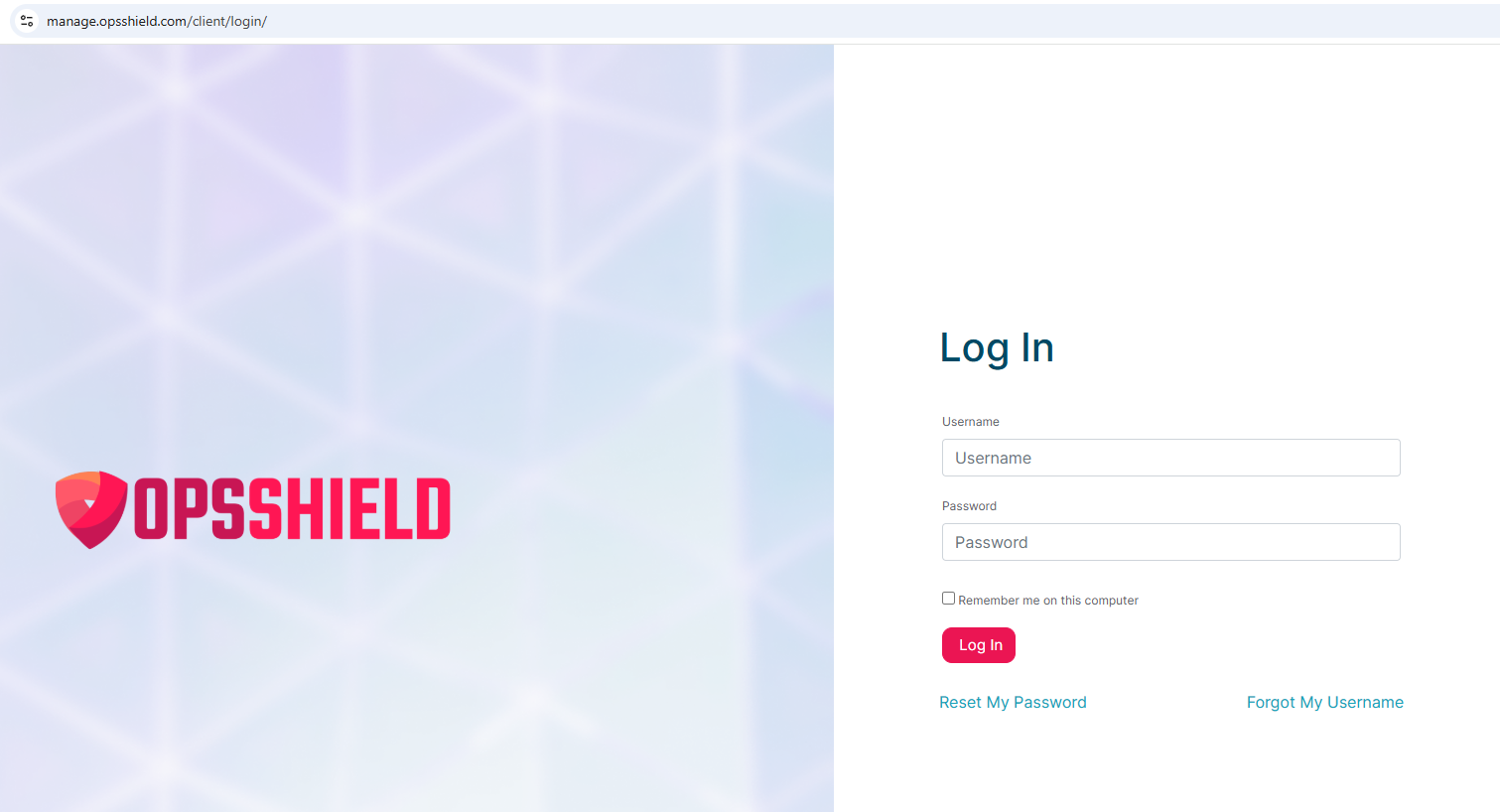
- After clicking, they are taken to the cPGuard App Portal login screen.
- They must manually enter their App Portal username and password to proceed.
Disabling SSO does not affect cPGuard's functionality — it only requires users to authenticate manually with their App Portal credentials instead of using the control panel session.
SSO vs Manual Login — Quick Comparison
| Feature | SSO Enabled | SSO Disabled |
|---|---|---|
| Login required | No | Yes |
| Authentication source | Control panel session | App Portal credentials |
| Access scope | Current server only | Based on account permissions |
| Best for | Admins & clients needing quick access | Environments requiring stricter auth control |
Summary
SSO in cPGuard streamlines access by removing the need for separate credentials when navigating from a trusted control panel session. It can be toggled on or off at any time using the CLI, giving administrators full flexibility over their authentication setup.